Credentials & Authentication
Save OAuth accounts and API keys as workspace connections so your automations can authenticate with third-party services. A connection stores the credentials required to act on your behalf in Slack, Google Drive, or your internal API.
- Use it to
- Store encrypted OAuth tokens and API keys in workspace connections, or register your organization's own OAuth client
- Find it
- Left sidebar → Connections → Connect an app (and Use your own app during OAuth sign-in)
- Limits
- Workspace OAuth client registrations require Admin access · Raw credentials are never returned in connection details
- Instead
- Secrets and Variables (when an HTTP Request or custom header needs a raw token string)
The Connection dropdown and connection details do not return raw credentials. Use them to select an account without copying its tokens into automation fields.
Types of Connections
The app determines which authentication methods are available. Add a connection either from a Step’s Connection → Connect a new connection… menu on the canvas or from Connections → Connect an app in the workspace sidebar. See Connecting an App for the step-by-step walkthrough.
| Method | How credentials are provided and renewed |
|---|---|
| OAuth (2.0 / 1.0a) | Sign in on the service’s consent page. Glow stores the returned tokens and refreshes them when the provider supplies a valid refresh token. Revoked authorization requires reconnection. |
| API Keys & Custom Fields | Paste the key or required fields from the third-party service into Glow’s connection form. Rotate keys by reconnecting the saved connection in place. |
Use Your Own App
An OAuth app registration identifies the application requesting access. Its Client ID and Client secret are separate from the provider account your automation uses. Saving them does not sign in a user or reauthorize existing connections.
Open the app’s sign-in setup
Start connecting the app and choose the intended sign-in method if several are offered. Click Use your own app. Glow opens this setup automatically when no usable registration is available for that method.
Have a workspace Admin save the registration
A workspace Admin must complete this form. Register the displayed redirect URL and required OAuth scopes in the service’s developer settings, then enter that registration’s Client ID and Client secret in Glow (for services that use a public OAuth client with PKCE, Client secret can be left empty). Use the displayed URL rather than guessing a callback address. Click Save.
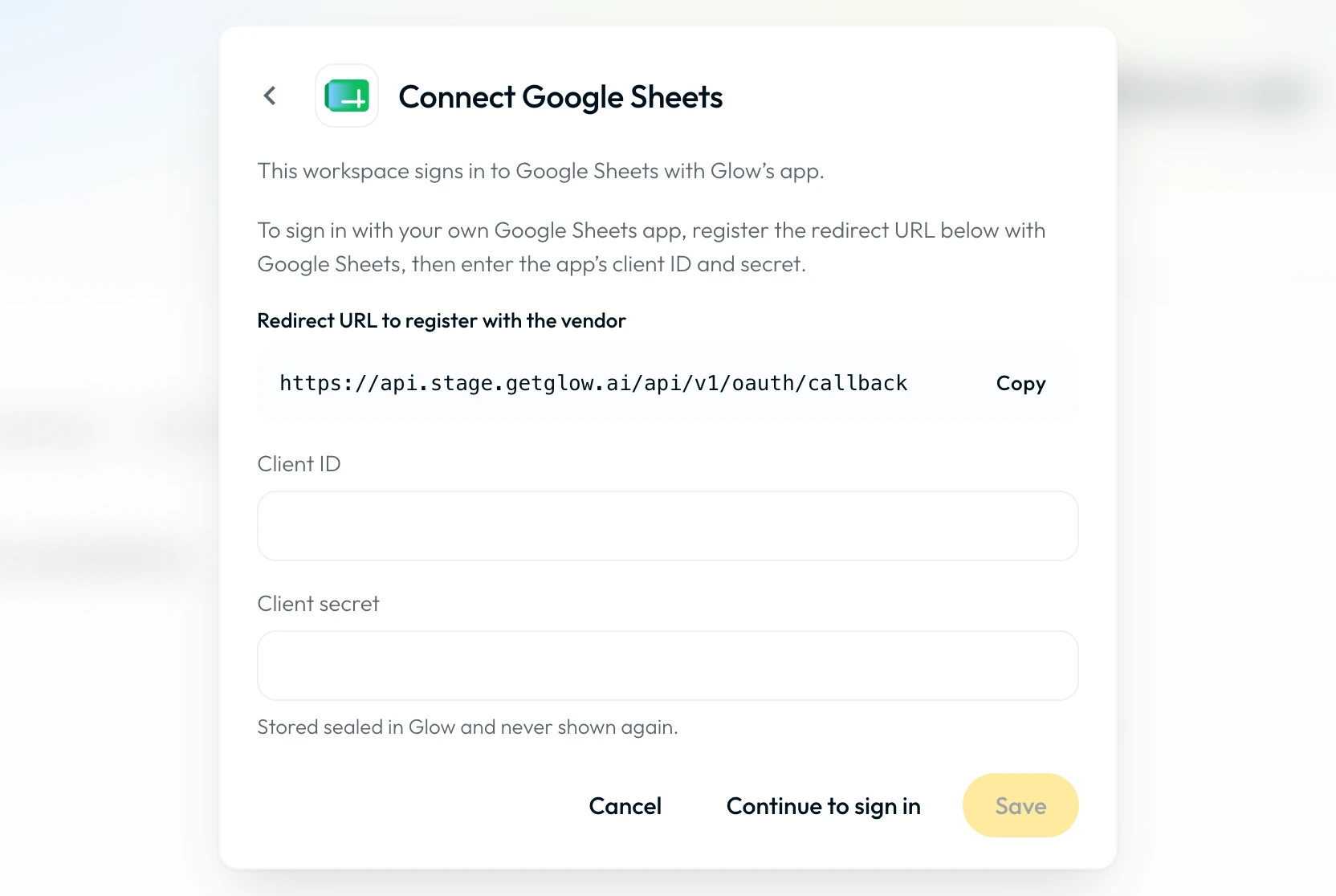
Continue with the intended account
Click Continue to sign in, then complete the service’s sign-in and consent prompts. Check the account and organization before approving access. Confirm the saved connection and test access to a non-sensitive resource.
| Operation | Rule and blocker |
|---|---|
| Sign-in & reconnect order | Glow uses the workspace’s own usable registration first, then an eligible MSP parent registration, then Glow’s registration. Reconnecting resolves the registration available at that time. |
| Rotate secret or change Client ID | Open Use your own app and save the new secret with the same Client ID. Changing the Client ID is blocked while non-disconnected connections still use the registration. |
| Remove this workspace’s app | Removes the workspace OAuth registration once no active connections reference it; contact support if you need assistance retiring an older registration. |
Security & Encryption
Glow encrypts app connection credentials before storing them. Connection details identify the account without returning its raw credentials. Authorized automations use the saved connection to act with that account’s provider permissions.
Review OAuth permissions before approving consent. For API keys, grant only the provider permissions your automation needs. Do not assume every integration requests the minimum scope for your particular automation.
If your security review requires a specific encryption standard or storage guarantee, request current evidence from your account team. See Security & Compliance.
Managing and Revoking Access
If a credential is compromised, revoke or rotate it at the provider promptly. Disconnecting in Glow is not a substitute for provider-side revocation and cannot undo work already sent to that service.
For planned removal, click the saved connection’s tile under Your connections, review Automations using it, and coordinate with teammates (other members’ private automations are excluded). Ordinary app connections are managed by their owner; a workspace Admin can also disconnect any workspace connection, while OpenRouter connections have separate Admin controls. Follow the disconnecting procedure and verify dependent Steps before returning them to service.
- Run
- Connect an app using OAuth or an API key, then open its tile under Your connections
- You should see
- Connection details display the connected account and owner without exposing raw tokens or keys.
What’s Next?
- Store non-OAuth API keys outside your step configuration in Secrets and Variables.
- Find and repair the automations a revoked credential breaks in Managing Connections.