Execution Log
Inspect every Step event, timestamp, and output from an automation run in the Execution Log on the canvas. Open it to see which Steps ran, what each produced, and where a failed run stopped.
- Use it to
- Follow an automation run Step by Step, search event outputs and errors, and jump to any Step's Executions tab
- Find it
- Top-right canvas toolbar → Execution Log (notebook icon)
- Cost
- Free to inspect · Skipped Steps and Waiting time are not charged
- Limits
- 30-day default run retention policy · Shows start and completion timestamps for every Step event
- Instead
- Activity (to monitor runs and alerts across the workspace) or a Step's Executions tab (for full input/output payloads)
Use Activity to monitor runs and alerts across the workspace. Use a Step’s Executions tab after the log has shown you which Step needs closer inspection.
Opening it
The Execution Log is the notebook icon in the toolbar above the canvas. It sits to the right of undo, redo, and the workflow-data controls. It opens over the canvas and closes with the X in its corner.
Before an automation has run, it says so: “This workflow hasn’t run yet. Run it to see each step’s activity here.” When you are ready for a real automation run, press Run and watch the log fill. Check the run point and destinations first. Sample trigger data does not prevent downstream actions from sending messages or changing records.
Reading a run
Runs are grouped newest first, each with a heading summarising it:
Latest run · 1 step · All steps succeeded 18:18:36The heading gives you three things at a glance: which run it is, how many steps it covered, and how it ended. Click it to collapse or expand that run.
Older runs are labelled by how far back they are: Previous run, then 2 runs ago, with older runs under Earlier activity. A run still going says Running… until it settles.
Each step appears when it starts, and again when it finishes
Inside a run, entries are events rather than a list of steps:
| Status | Meaning | Charged? |
|---|---|---|
| Running / Started | The Step is working now (Running while active, Started once settled). | Yes, as it uses credits |
| Waiting | Paused on Wait, Human Review, or an AI Agent approval. Approve or Reject to continue. | No extra charge for waiting time; does not count toward an AI Agent’s active-time limit |
| Completed | Finished; its result is shown beneath and in Executions. | Yes |
| Failed | Stopped with an error; the readable error headline is shown beneath. | Only what ran before the error |
| Skipped: not charged | Never started: another branch ran or the run stopped earlier. | No |
| Stopped | Someone stopped the run. The step already in progress finishes and no downstream steps start. | Only what ran |
When an AI Agent waits for tool approval: The Step node on the canvas shows Running… while the run is paused for a decision. Approve or Reject the pending action in the Step’s Executions tab or in Approvals to resume the run.
So a step that ran normally shows twice: once when it starts and once as Completed. The two timestamps tell you how long the step took.
The result sits under the step
A completed step shows what it produced, and a failed step shows its error headline, so you can check what happened without leaving the log:
{"result":{"success":true,"executionOutput":"Total with VAT: 121.00\n"}}Each entry carries the step’s number and name. Clicking it pans to that step on the canvas and opens the App drawer on Executions with that run expanded.
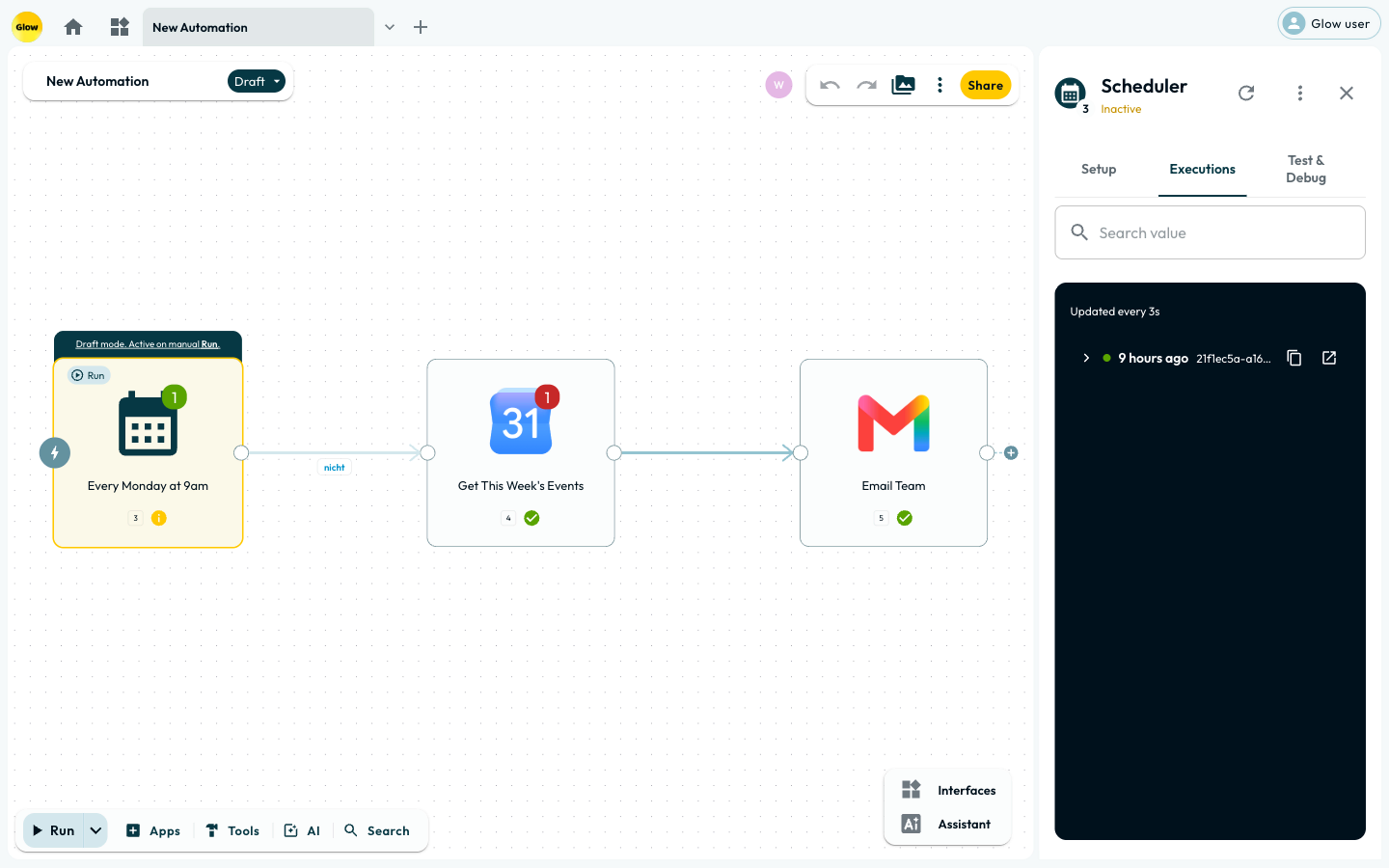
Finding one thing in a long run
The Search box at the top filters the log to matching step names, results, and full error text across both open and collapsed runs. When nothing matches, it shows “No events match your search.”
What to do with a failed run
Expand the affected run and find the first unexpected result or failed Step, not just the last red entry. Click that entry to inspect its full error and inputs in Step-Level Executions:
- Unexpected input or auth error: Inspect the referenced upstream Steps’ outputs from the same execution ID, including any in-field transformations. Restore account permissions before retesting.
- External timeout or write failure: Check the destination app before repeating a write. A failed run does not prove that a record or charge was never created. Enable Retry on fail only for operations that are safe to repeat; see Error Handling & Retries.
If the execution is still running, inspect that run rather than starting another. For specific error messages, see Troubleshooting & Common Errors.
How long the log keeps things
The default retention policy keeps run records for 30 days after the run finishes. Both the Execution Log and each Step’s Executions tab display the active notice: “New runs are kept for 30 days. Each run keeps the policy in effect when it started.” For records needed beyond 30 days, write the data to an external store during the run or ask your account team about a longer window.
- Run
- Click the Execution Log notebook icon in the top-right canvas toolbar and select a Step event
- You should see
- The canvas pans to that Step and opens the App drawer on Executions with the matching run expanded.
What’s Next?
- 👉 Step-Level Executions →: inspect the affected Step’s input, output and attempts.
- Activity: monitor runs and alerts across the workspace.
- Error Handling & Retries: configure retries and failure routes for future runs.