Apps & Integrations
Connect your automations to business apps in Glow. Select a saved account for each Step, then configure the action or event your process needs.
- Use it to
- Connect third-party app accounts, configure pre-built actions and triggers, or register external MCP agent tools
- Find it
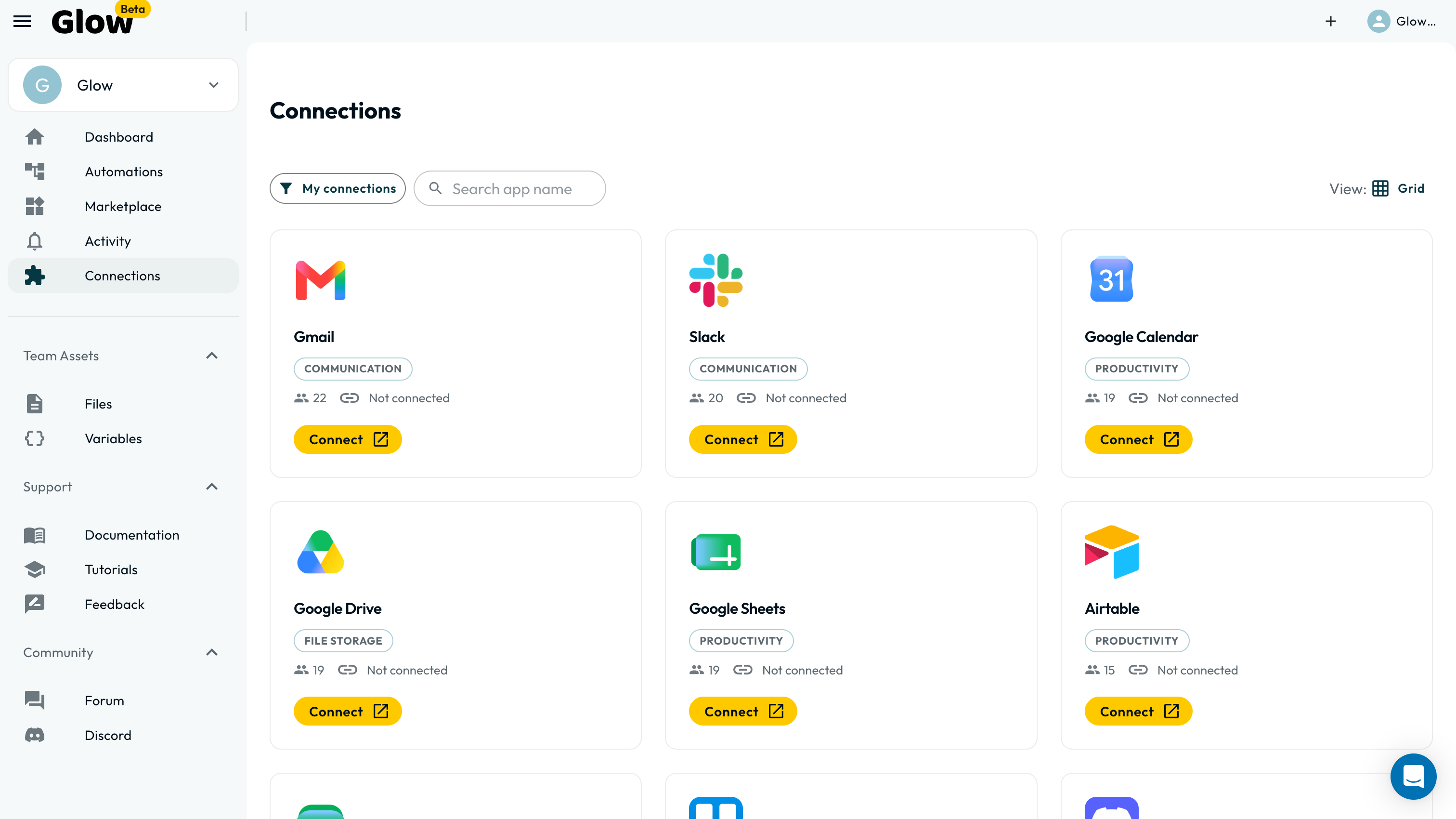
- Left sidebar → Connections (Connections and Agent tools tabs) and canvas App drawer
- Instead
- HTTP Request Step (when calling a public API without a catalog integration)
Start Here
| Your task | Guide |
|---|---|
| Evaluate integration architecture and operational controls | How Glow Integrations Work |
| Connect an account and check resource access | Connecting an App |
| Understand OAuth, API keys, and app registrations | Credentials & Authentication |
| Reconnect, switch, or remove an account | Managing Connections |
Find the Right Connection Settings
Open Connections in your workspace:
| Tab | What it manages |
|---|---|
| Connections | Saved app accounts, Browse apps, and AI model provider connections such as OpenRouter |
| Agent tools | External MCP servers whose tools can be selected for AI Agents |
To configure your organization’s OAuth registration, choose Use your own app during the app’s sign-in setup. A workspace Admin saves the registration; the intended account still needs to sign in. See Credentials & Authentication.
An external MCP server is separate from an app account. Start with Connecting an App for ordinary app actions, or Glow as an MCP Client for external agent tools.
The Integrations Directory
Browse the Integrations Directory to find apps. Check the actions and triggers available in your workspace when configuring an automation.
How to use the directory:
Search for the service, then identify the operation you need. If it has no pre-built action, check for the app’s Custom API request. For another public API, use HTTP Request.
Using your own API keys
OAuth connections use the authorization you grant at the service. Refresh depends on the service providing a valid refresh token; revoked authorization can require reconnection.
Where a service authenticates with an API key instead, you supply your own key in the connection settings. That usage is billed to your account and covered by your own agreement with the provider. See Credentials.
Glow-managed AI models need no key from you. If you choose a workspace OpenRouter model connection instead, it uses your provider account and requires its credentials.
How apps work in Glow
Glow’s native integration framework defines each app’s authentication, actions, fields, and supported triggers. The app catalog presents those operations in the editor. App Steps and permitted AI agent tools use the same action implementations.
Pre-built actions provide app-specific fields and resource choices. Custom API request reuses the selected account for another endpoint within that app’s API. App triggers receive events using the mechanism that integration supports.
How Glow Integrations Work explains authorization, execution, incoming events, and the boundaries to review before connecting production systems.
- Run
- Open Connections in your workspace sidebar and browse available integrations
- You should see
- Saved app accounts appear under Connections, and Connect an app opens the searchable catalog.
What’s Next?
- Sign in to your first app in Connecting an App.
- See what to do when an account stops working in Managing Connections.
- Call a service Glow has no integration for with the HTTP Request step.