Interactive AI Web Assistant with Memory
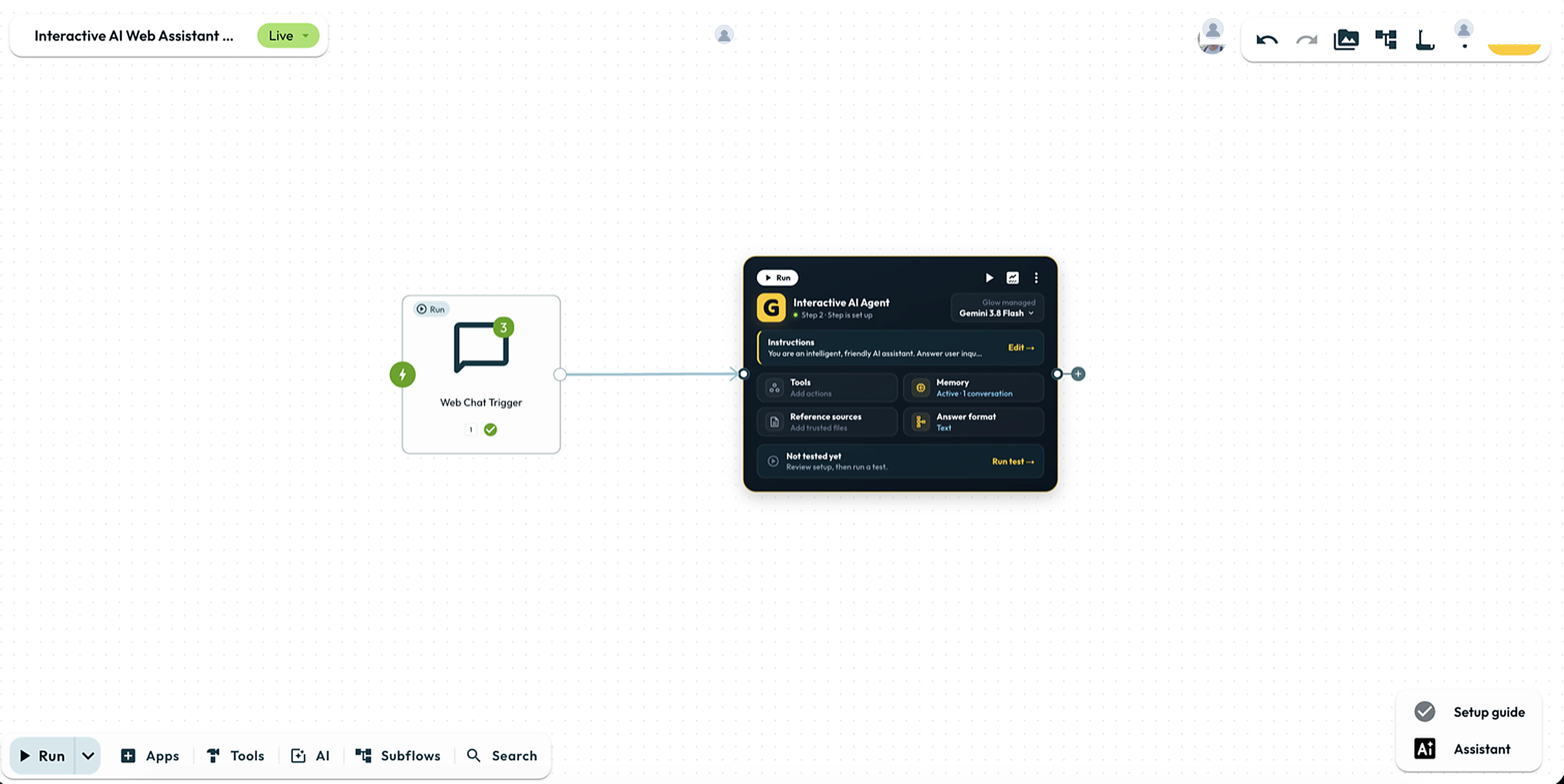
Build a two-Step chat assistant with a hosted page and recent conversation history. Test it in Draft, then choose who can use the live link.
Level 2: Routing & AI · about 10 minutes · 2 Steps
- Result
- Provide a hosted chat page whose AI Agent can use earlier messages in the conversation.
- You need
- A Glow workspace with available Step credits and Glow AI tokens. No external model account is needed for Glow-managed Gemini.
- Usage
- Each message runs the automation and uses credits and AI tokens. Per-visitor rate limits are not a total spending cap.
- What changes
- Chat tests execute connected Steps and any configured tools, even in Draft. Use nonsensitive sample messages.
The final Step’s text answer is returned to the visitor. Do not connect the AI Agent back to the trigger.
Prerequisites
Create an automation in your Glow workspace and leave it in Draft. Use only messages approved for sharing with the model. Keep app tools off for the core example.
For a beginner walkthrough of these controls, follow Your First AI Agent.
Building the Automation
1. The Trigger: Chat Trigger
Add Chat Trigger from Tools → Start. Configure these fields in the App drawer:
| Field | Setting | Purpose |
|---|---|---|
| Mode | Hosted Chat | Provides a hosted chat page when Live. |
| Authentication | Glow User Auth | Admits signed-in members of the owning workspace. Choose None only for a deliberately public chat. |
| Chat title | AI Web Assistant | Heading on the hosted page. |
| Welcome message | Hi! How can I help you today? | Display-only greeting. |
| Input placeholder | Ask a question... | Hint in the message box. |
| Conversation memory (messages) | 20 | Earlier messages supplied in historyText. |
| Messages per visitor per minute | 20 | Limits the sending rate for each visitor. |
2. The AI Agent: Model, Goals, and Memory
Add AI Agent and connect the Chat Trigger’s output to its input. Keep the default, Gemini 4 Argon, under Brain (model) and use Text for the answer format.
In the Instructions section, set Primary goals to:
You are a helpful AI assistant. Answer clearly and concisely.
If you do not know an answer, say so rather than inventing details.

Current user message:
{{ 1.chatInput }}

Recent conversation history:
{{ 1.historyText }}
The examples assume the Chat Trigger is Step 1. Use the actual number on your canvas, or select the values from Workflow data.
Recent history works without Agent Memory. To enable Conversational Memory as well:
- Open Context in the App drawer (or click Memory on the canvas card) and turn on Conversational Memory.
- Set Conversation ID source to Use data from an earlier Step and map
{{ 1.sessionId }}into Conversation ID so each visitor session keeps a separate thread. - Keep Authentication set to Glow User Auth when restricting chat access to signed-in workspace members.
Testing the Assistant
Test recent chat history
Select Chat Trigger and open its Chat tab. Send Remember my favorite fruit: Blueberry., wait for the reply, then ask What is my favorite fruit?.
Check that the answer recalls Blueberry. The completed reply appears after execution; this check does not prove Agent Memory persistence because historyText also supplies the earlier message.
Test optional Agent Memory separately
If you enabled Agent Memory, temporarily set Conversation memory (messages) on the trigger to 0. Send a different fact and a follow-up question. Inspect both the memory status and the answer, then restore the history setting to 20.
Share the hosted page
You can finish the example in Draft. When ready for incoming messages, review Authentication and your usage budget, switch to Live, and copy the URL under Hosted chat page in the trigger’s App drawer.
Open that link and repeat a controlled conversation. For Glow User Auth, check access with a workspace member. For None, anyone with the link can send messages that consume your workspace’s credits and AI tokens.
- Run
- Open the Chat tab on Chat Trigger, send Remember my favorite fruit: Blueberry, then ask What is my favorite fruit?
- You should see
- The AI Agent reads historyText from the session and replies with Blueberry.
What’s Next?
- Equip App Tools: Add only the actions the assistant needs, and review their permissions before exposing them to chat visitors.
- Gmail AI Triage & Inbox Labeling: Classify email and route it to configured actions.