Variable Reference Syntax
Use {{ }} placeholders to reference Step outputs, workspace values, and execution context in dynamic fields.
- Use it to
- Reference Step outputs ({{ N.field }}), loop items ({{ item }}), Subflow inputs ({{ $input }}), workspace values, and 51 inline pipes
- Find it
- Click the data icon in any Step input field (Workflow data panel)
- Cost
- Free (0 Step credits and 0 Glow AI tokens for references and pipe chains)
| Reference family | Example | Resolves to |
|---|---|---|
| Step outputs | {{ 3.field }}, {{ 1.items.0.name }}, {{ 1.items[0].name }}, {{ 5.$full_result }} | Field, nested record, list item, or full Step output |
| Loop items & batch results | {{ item.field }}, {{ item.$index }}, {{ 5.results }}, {{ 5.items }} | Active loop item or collected batch outputs |
Subflow input ($input) | {{ $input }}, {{ $input.customerId }}, {{ $input.id | default:"none" }} | JSON payload passed to a Subflow |
| Filter rule items | {{ $item }}, {{ $item.status }}, {{ $itemIndex }} | Active item and index inside Filter rules |
| System variables | {{ $now }}, {{ $today }}, {{ $run.id }}, {{ $workflow.name }} | UTC timestamps, run context, and workspace metadata |
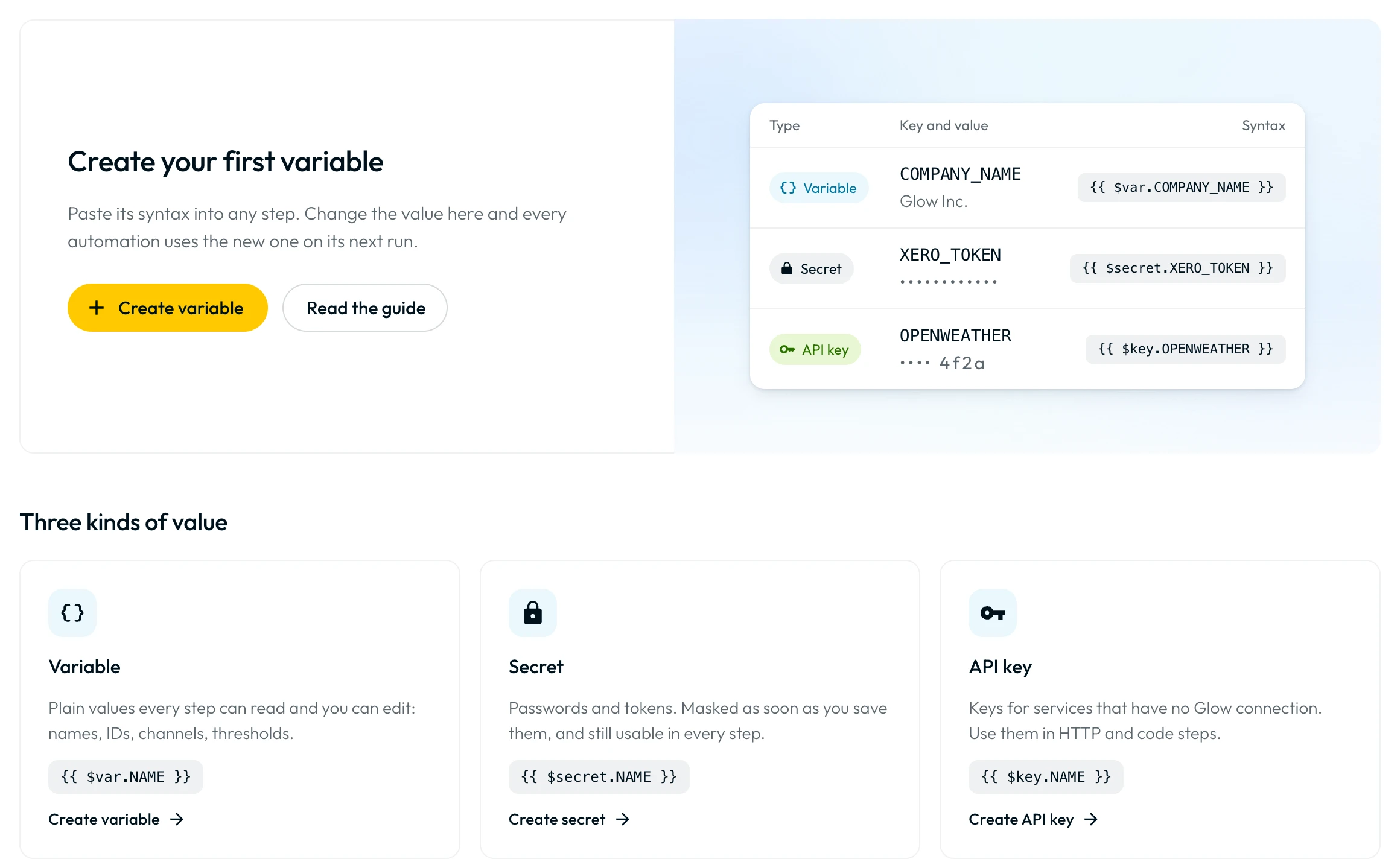
| Workspace variables, secrets & keys | {{ $var.KEY }}, {{ $secret.KEY }}, {{ $key.KEY }} | Workspace variables, encrypted secrets, and API keys |
| Files & Webhook URLs | {{ $file.<id> }}, {{ $webhook.1.url }} | Workspace file contents/URL or Webhook trigger URL |
Pipe transformations (|) | {{ 3.email | trim | lower }}, {{ $now | date_add:7:days }} | Inline string, number, date, or list transformation |
Interactive Variable Syntax Validator
Test how Glow’s runtime engine resolves double-brace {{ N.path }} expressions.
The checker tests sample JSON rather than a live run. Use explicit result.output.* paths when testing Code output here.
The {{ }} syntax
Wrap references in double curly braces, such as {{ 3.email }}. Inner whitespace is ignored ({{3.email}} equals {{ 3.email }}).
- Step references. Start with a permanent Step number and dot path (
{{ 1.email }}). - System and workspace tokens. Start with
$({{ $now }},{{ $secret.API_KEY }}). - Literal
{{ }}tags. Glow only resolves tokens starting with a Step number,item,$item,$input, or a$prefix. Third-party tags ({{ first_name }},{{ customer.name | upcase }}) stay literal text.
Steps are referenced by number, not by name. Renaming a Step never changes
its reference. {{ 3.email }} always reads Step 3; {{ trigger.… }} and {{ myStepName.… }} do not exist.
Step & Loop Tokens
Every Step has a permanent number on the canvas. Use that number with dot notation to read its output ({{ 1.email }} or {{ 1.customer.address.city }}).
Step Output Shapes
Each Step type stores its own output structure (1 is the trigger and 2 is an action):
| The Step | Stored output | Example reference |
|---|---|---|
| App actions | Action return value directly (no ret wrapper) | {{ 2.email }} |
| HTTP Request | Response under ret, request summary under request, plus pagination | {{ 2.ret }}, {{ 2.request.url }}, {{ 2.pagination.totalItems }} |
| Respond to Webhook | statusCode, headers, body | {{ 2.statusCode }}, {{ 2.body }} |
| Parse JSON | Parsed record, list, or scalar directly | {{ 2.customer.email }} |
| Extract from File | results, resultCount, headers (CSV/XLSX/JSON) or text, pageCount, pages | {{ 2.results }}, {{ 2.text }} |
| Convert to File | File object under file ({ id, name, contentType, size }) | {{ 2.file }}, {{ 2.file.name }} |
| Split Text & HTML to text | Returned value directly | {{ 2.$full_result }} |
| AI Steps (including AI Agent) | Answer under result (AI Agent also outputs estimatedCreditsUsed) | {{ 2.result }}, {{ 2.estimatedCreditsUsed }} |
| Code editor | result.output.<field>, result.executionOutput, result.stderr (20k chars) | {{ 2.result.output.total }}, {{ 2.result.stderr }} |
| List Steps (Sort, Remove duplicates, Limit, Combine) | results, resultCount | {{ 2.results }} |
| Webhook | Envelope with body; root fields when Body only is on | {{ 1.body.email }} or {{ 1.email }} (Body only) |
| Form Trigger | formData, submittedAt, and responder (Glow User Auth) | {{ 1.formData.email }}, {{ 1.responder.email }} |
| Error Trigger | workflow, execution, failedStep (stepNumber, name, key, errorMessage) | {{ 1.workflow.name }}, {{ 1.failedStep.errorMessage }} |
| Data Store Triggers | row, key, store (plus previousRow, changedColumns) or items, text | {{ 1.row.email }}, {{ 1.changedColumns }}, {{ 1.text }} |
| Other app triggers | Emitted object/list directly; scalar events under value | {{ 1.email }} |
For non-looping Code editor Steps, {{ 2.total }} and {{ 2.output.total }} alias {{ 2.result.output.total }}.
Loop item variables
Use loop tokens inside Run for each item and Repeater, or read batch outputs after the loop finishes:
| Context | Placeholder | Resolves to |
|---|---|---|
| Current loop item | {{ item }} / {{ item.email }} | Active item or one of its fields |
| Batch position and size | {{ item.$index }} / {{ item.$total }} | Zero-based position and total count (bare {{ $index }} stays literal) |
Aligned earlier loop Step N | {{ 5.item }} / {{ 5.item.email }} / {{ 5.item.$index }} | Step 5’s result for the current item (or outer Repeater pass) |
| Collected successes after loop | {{ 5.results }} | Successful results only, in input order (omits failed items) |
| Collected per-item detail | {{ 5.items }} | Every item with its position, status and error |
| Collected loop counts | {{ 5.stats }} | Summary counts: total, succeeded, failed, skipped |
- Read the current item with {{ item }} or {{ item.email }}.
- Read zero-based index with {{ item.$index }} and count with {{ item.$total }}.
- Read an aligned upstream loop Step with {{ 5.item.email }}.
- Reference the current item inside Filter rules with {{ $item }} or {{ $item.status }}.
- Read the zero-based position inside Filter with {{ $itemIndex }}.
- The two forms do not mix. Writing {{ item }} inside Filter stays literal text.
Workspace, System & Subflow Tokens
System Variables
System variables resolve from execution context in UTC without referencing a Step:
| Token | Resolves to |
|---|---|
{{ $now }} / {{ $today }} / {{ $yesterday }} | Current UTC ISO timestamp, YYYY-MM-DD, or previous UTC date |
{{ $now.time }} | Current UTC time (HH:mm, 24-hour clock) |
{{ $run.id }} / {{ $run.startedAt }} | Execution ID or run creation UTC timestamp |
{{ $run.trigger }} / {{ $run.attempt }} | Trigger source (Manual run, Schedule, API) or attempt |
{{ $workflow.name }} / {{ $step.name }} | Automation name or current Step’s custom/default name |
{{ $workflow_url }} / {{ $workflow_footer }} | Canvas URL or Markdown backlink to the automation |
{{ $team.name }} / {{ $user.name }} / {{ $user.email }} | Workspace name or creator’s name/email (fails if blank) |
Pipe transformations (|)
Append | op or | op:arg to Step outputs ({{ N.field }}), loop items ({{ item.field }}), Subflow inputs ({{ $input.field }}), or UTC clock tokens ({{ $now }}, {{ $today }}, {{ $yesterday }}). Operations run left to right; quote arguments with spaces, colons, or pipes:
| Group | Operations | Example |
|---|---|---|
| Clean up | trim, strip_html, strip_markdown, strip_fence, replace:"old":"new" | {{ 1.body | strip_html | trim }} |
| Change the case | lower, upper, capitalize | {{ 1.email | trim | lower }} |
| Cut it down | before:" ", after:", ", first_line, limit:280, split | {{ 2.text | limit:500 }} |
| Take out | extract_domain, extract_email, extract_number, extract_url | {{ 1.sender | extract_email | extract_domain }} |
| Make safe for sending | url_encode, url_decode, escape_json, base64_encode, base64_decode, sha256 | {{ 1.note | escape_json }} |
| Convert | lookup:'{"tier_1":"Enterprise","tier_2":"Pro"}', parse_json, to_json | {{ 1.tier | lookup:'{"t1":"Pro"}' | default:"Free" }} |
| Measure | count_characters, count_words | {{ 2.result | count_words }} |
| Numbers | plus:1, minus:1.5, times:1.21, divided_by:100, round:2, round_up, round_down, absolute, truncate:2, number_format:2, format_currency:"$", format_percent:1, format_phone:"US" | {{ 1.cents | divided_by:100 | format_currency:"$" }} |
| Dates | format_date:date_iso, date_add:7:days, date_diff, date_start_of:day, date_end_of:day, date_part:year, parse_date:day_first | {{ $now | date_add:7:days | format_date:date_iso }} |
| From a list | first, last, count, join:newline, item_at:3, keep_first:5, where:"status":"paid", remove_duplicates, reverse, sort, pluck:"email", unnest:"lineItems", total, average, smallest, largest | {{ 2.orders | where:"status":"paid" | pluck:amount | total }} |
| If empty | default:"Unknown" (use default: for an empty string) | {{ 1.company | default:"Unknown" }} |
Workspace values ($var, $secret, $key), $file, $webhook, $user, $run, and Filter’s $item do not accept pipe chains. See Data Transformation for details.
Using the Visual Workflow data panel
- Click into a configurable field in the App drawer.
- Click the data icon at the field edge.
- Pick a Step output or System Variables entry to insert its
{{ }}token.
The picker displays retained output, saved test data, predicted fields, and System Variables. Run a test to verify suggested fields before production.
- Run
- Paste an expression like {{ 1.email | trim | lower }} into the validator or a Step input
- You should see
- The expression validates with zero errors and resolves in Test & Debug.
What’s Next?
- Data Transformation: Tidy strings, calculate numbers, and format dates with pipes.
- Automation Data: Inspect and map payloads across canvas Steps.
- Secrets & Variables: Store workspace values and encrypted credentials.