Scheduler Trigger
Start an automation on a recurring schedule written in plain language or cron, pinned to your time zone.
- Use it to
- Run an automation automatically every X minutes, hourly, daily, weekly, or monthly
- Find it
- Tools → Start → Scheduler
- Cost
- Free (0 Step credits for the trigger; downstream Steps use their normal rate)
- Limits
- Intervals from 10 seconds to monthly · Timezone defaults to your browser IANA zone (or UTC over API)
- Output
- Starts the run on schedule; read {{ $now }}, {{ $today }}, or {{ $run.startedAt }} in downstream Steps
- Instead
- Webhook Trigger (when an external app can push events as they happen) or Wait (to pause mid-run)
Schedule: "Every weekday at 9:00 AM"
Timezone: "Europe/Prague"
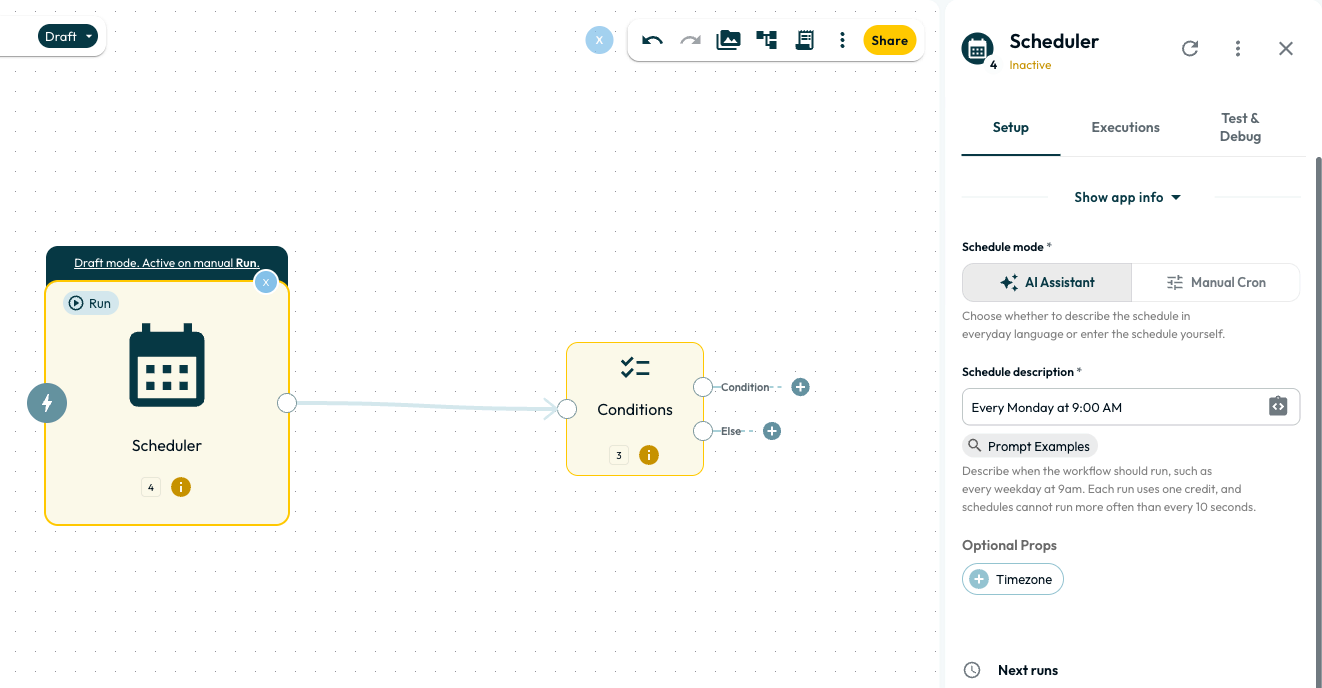
Describe when to run in plain words (or switch to Manual Cron) and pick your IANA time zone.
What it passes on
The Scheduler trigger carries no event payload of its own; it starts the run when the scheduled time arrives. When a later Step needs the execution timestamp or date, read the System Variables {{ $now }} (ISO UTC timestamp), {{ $today }} (YYYY-MM-DD), or {{ $run.startedAt }}.
Setting up a Scheduler trigger
- Open Tools → Start → Scheduler in the dock.
- Type the schedule into Schedule description in plain words (defaults to
Run everyday at 8:00 AM), or switch Schedule mode to Manual Cron. - Open Optional Props and check Timezone. In the browser editor, Timezone is pre-filled with your browser’s IANA time zone (such as
Europe/PragueorAmerica/New_York); if cleared or omitted over API/MCP, the schedule runs in UTC. - Confirm the previewed Next runs times in the panel before setting the automation Live.
What you can type
In AI Assistant mode, write the schedule in plain words and specify AM or PM:
Every day at 9:00 AM.Every hour on the hour.Every 15 minutes.Every weekday at 6:00 PM.The first of every month at midnight.The last Friday of every month at noon.
Click Examples beside the field for more phrasings. If the previewed run times do not match, reword the sentence or switch to Manual Cron.
Schedule modes: Plain language vs. Manual Cron
- Type schedules naturally, including patterns like the last Friday of every month.
- Converts your phrasing into upcoming execution times that you can verify in the panel.
- Accepts 5-field cron (0 9 * * 1-5), 6-field cron with leading seconds, or raw iCalendar RRULE.
- Best when you already have an expression or want strict syntax control.
Validation and the 10-second interval floor
Glow validates your schedule before saving:
- 10-second minimum gap: Glow checks up to 120 upcoming occurrences over one year and rejects gaps below 10 seconds (such as
*/5 * * * * *). - Expired schedules: A rule with no future occurrences raises a warning and saves as expired.
- Named IANA timezones: Timezone selection requires a valid IANA identifier (
Europe/Warsaw,America/New_York) and defaults to UTC.
Time zones
Leave Timezone empty under Optional Props to run in UTC (“9:00 AM” means 9:00 AM UTC). Set Timezone to your region and confirm Next runs before enabling the automation.
Tip: Document which time zone each scheduled automation uses so your team knows when to expect the output.
Practical examples
Daily report generation
Run every weekday at 8:00 AM to query your database or analytics tool and post a summary to Slack before standup.
Hourly data sync
Run every hour to pull new records from a CRM and write them to a data warehouse.
Weekly cleanup
Run every Sunday at 2:00 AM to archive stale records and send a cleanup summary to the operations team.
Common pitfalls
Overlapping runs
By default, a new scheduled run starts on time even if the previous run is still going. To prevent overlap, open More (⋮) → Settings → Concurrency & queueing and choose One at a time (skip overlapping) or Limit concurrent runs. See Concurrency & queueing.
Missed-interval handling and version restores
If a scheduled slot is delayed, Glow executes the pending run once and schedules the next future occurrence rather than backfilling historical intervals. Restoring a saved version recalculates upcoming Next runs times from the current clock without replaying past occurrences.
Choosing the interval
The Scheduler supports intervals down to 10 seconds. Short intervals increase run volume and credit usage. Pick the longest interval that meets your needs, confirm downstream API rate limits, and check your plan’s allowance in System Limits & Quotas.
Daylight Saving Time
Glow follows the trigger’s configured time zone. During daylight saving transitions:
- Local times can be skipped or repeated when clocks move forward or back, and transition hours vary by region.
- Check upcoming occurrences around the transition date, or use UTC when the job must follow a fixed clock.
- Run
- Type Every weekday at 9:00 AM, select your Timezone under Optional Props, and inspect Next runs
- You should see
- The Next runs preview lists the upcoming 9:00 AM weekday timestamps in your chosen time zone.
What’s Next?
- Start an automation from an external event instead of a clock with the Webhook Trigger.
- Check your plan’s run allowance in System Limits & Quotas.