Canvas Context Menu
Right-click anywhere on the canvas to add Steps, apps, tools, and sticky notes directly at your cursor. It is the quicker route once you know what you are adding.
At a glanceVerified in app · Oct 30, 2026
- Use it to
- Add Steps, apps, tools, and sticky notes at your cursor, or right-click an existing Step to edit, duplicate, disable, or run from it
- Find it
- Right-click empty canvas (catalogue menu) or right-click an existing Step card (Step actions)
- Limits
- Disable is not offered on loop Steps, empty placeholders, or the current run point
- Instead
- Bottom Dock (to browse the full grouped catalogue at the bottom of the canvas)
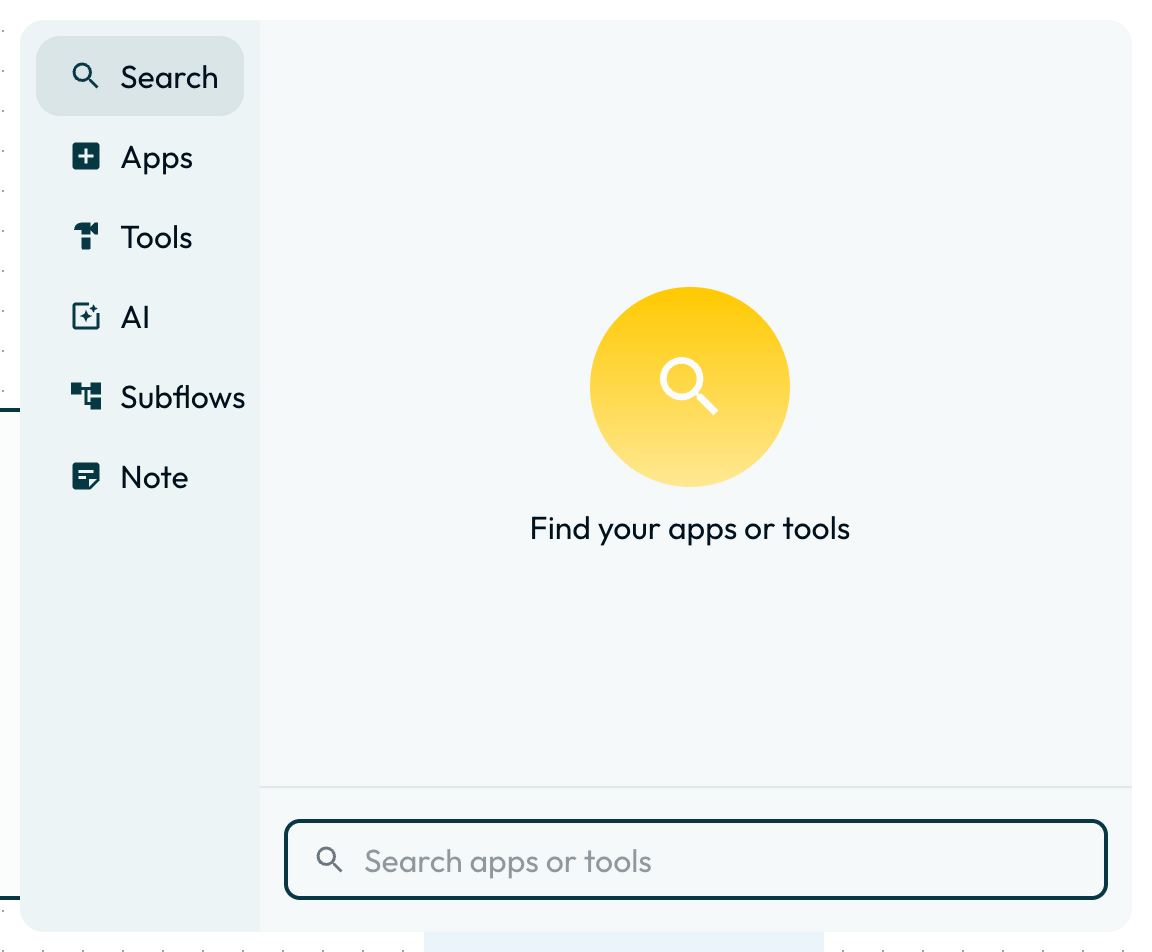
Menu sections
The menu opens on a rail of sections mirroring the dock, including Subflows, with a Sticky Note entry beneath them. The main ones:
Search
Global Search Start typing after right-clicking to search all available triggers, actions, integrations, and tools at once.
Step context menus
Right-click any existing step on the canvas to open its step context menu:
| Action | What it does |
|---|---|
| Edit | Opens the step’s configuration in the App drawer, the same as clicking it. |
| Set run point | Starts manual Run executions from this step instead of the trigger. See Testing & Debugging. |
| Run from here | Starts a one-off test run at this action step while reusing the latest output or saved Testing data of earlier steps, without changing the automation’s run point. |
| Duplicate | Creates an exact copy of the step, configuration included. |
| Run for each item… | Available in the step card’s ⋮ menu; opens the per-item batch popover so the step runs once per item in a list. See Run for each item. |
| Disable / Enable | Skips the step on every run while leaving it on the canvas (reads Enable when off). Not offered on loop steps or empty placeholders; move the run point first if this step is the current run point. |
| Unlink | Removes the step’s connections while leaving the step itself in place. |
| Delete | Removes the step and its connections. |
- Run
- Right-click empty canvas, type an app or tool name, and select it from the list
- You should see
- Glow places the new Step on the canvas at your cursor position and opens its Setup tab.
What’s Next?
- Find the rest of the canvas controls in the Canvas Utilities Menu.
- Skip the menu entirely with the shortcuts listed in Keyboard Shortcuts.
Last updated on