Undo & Redo
Reverse or reapply canvas edits, field changes, and generated Assistant Steps with Cmd/Ctrl + Z. Use Cmd/Ctrl + Shift + Z to put back a change you just undid.
- Use it to
- Reverse or reapply canvas movements, App drawer field edits, and grouped Workflow Assistant changes
- Find it
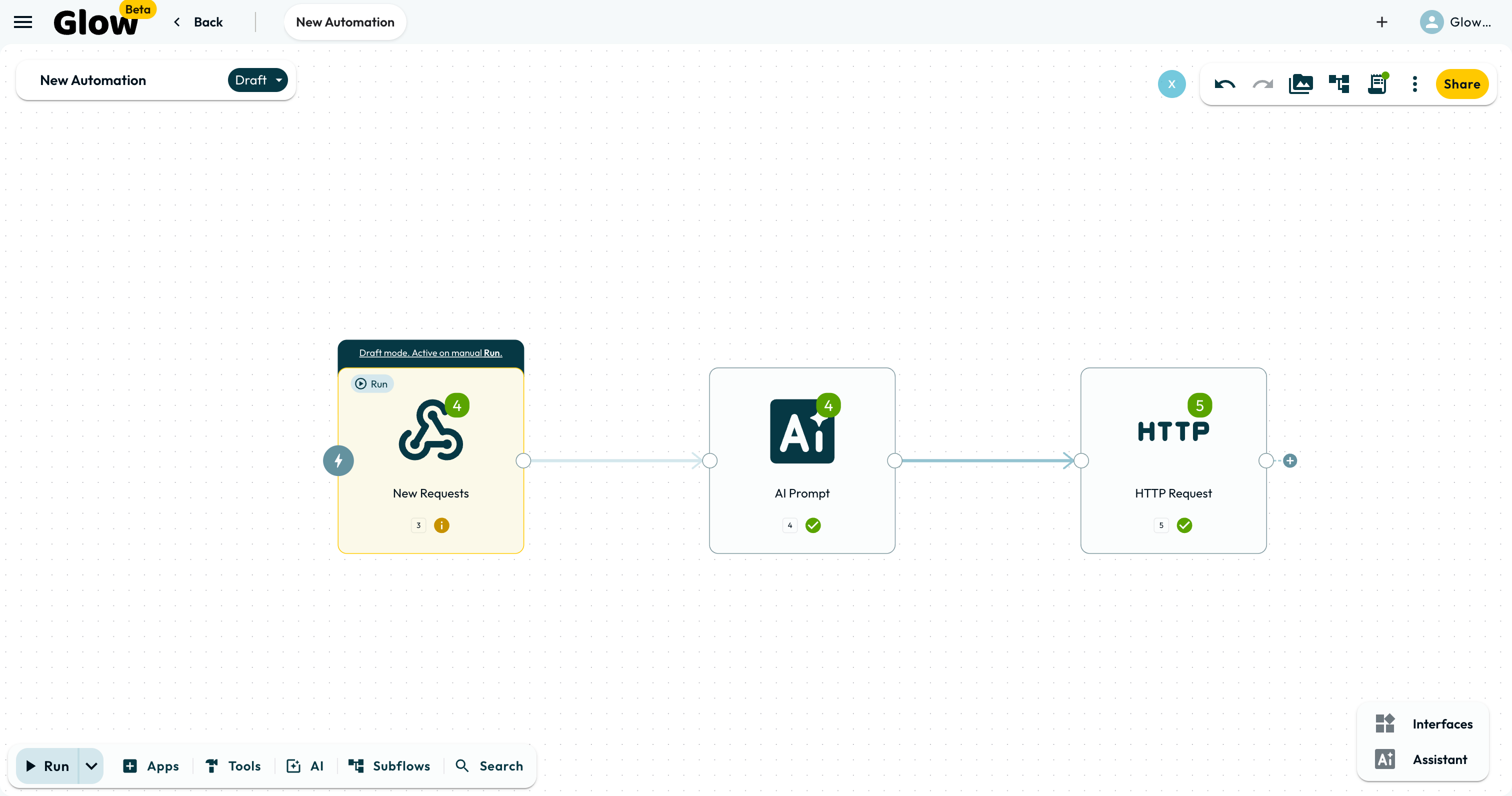
- Top-right canvas toolbar (Undo / Redo buttons) · Shortcuts Cmd/Ctrl + Z and Cmd/Ctrl + Shift + Z
- Limits
- Scoped per canvas tab · Does not reverse external actions already performed by a test or run
- Instead
- Documentation & history → History (to restore a saved version or checkpoint further back than the undo stack)
This page covers what undo reaches, how the history is kept separate per tab, and what happens when a colleague is editing the same canvas.
What undo covers
Undo reaches further than moving and deleting steps.
You can undo and redo:
- Canvas Movements: Dragging steps, drawing connection links, or reorganizing the layout.
- Drawer Configurations: Typing into input fields, mapping variables, or changing step settings inside the App drawer. Inside Code editor or local setup inputs (like condition branch names or webhook headers), Cmd/Ctrl + Z undoes typing in that field first.
- Workflow Assistant changes: Generated Steps and connections group into one undo entry. Revert a build pass with one shortcut.
Undo applies to canvas configuration only. Undoing a Step or field change restores the canvas state. It does not reverse external actions from a test or run.
One action, one press
Composite actions that touch several settings at once (such as Clear all props on a step) reverse together with one Cmd/Ctrl + Z. If part of an action is no longer reversible, the press skips that entry and undoes the most recent action that can still run.
Tab-Specific Context
Each tab keeps its own undo history, so automations open side by side in Canvas Tabs never share one. Make three changes in “Automation A”, switch to “Automation B” to edit a webhook, and switch back. Pressing Cmd/Ctrl + Z undoes only the changes you made in “Automation A”.
Undo on a Shared Canvas
Each collaborator’s manual edits stay in their own session. Grouped Workflow Assistant builds apply to the shared automation. Coordinate before reverting a shared build pass, and review the Step settings together.
- Run
- Move or delete a Step on the canvas, then press Cmd/Ctrl + Z
- You should see
- The Step returns to its previous position or reappears on the canvas with its connections intact.
What’s Next?
- Roll back further than the undo stack reaches with Versioning.
- See how per-user history works alongside teammates in Real-Time Editing.