AI Data Transform
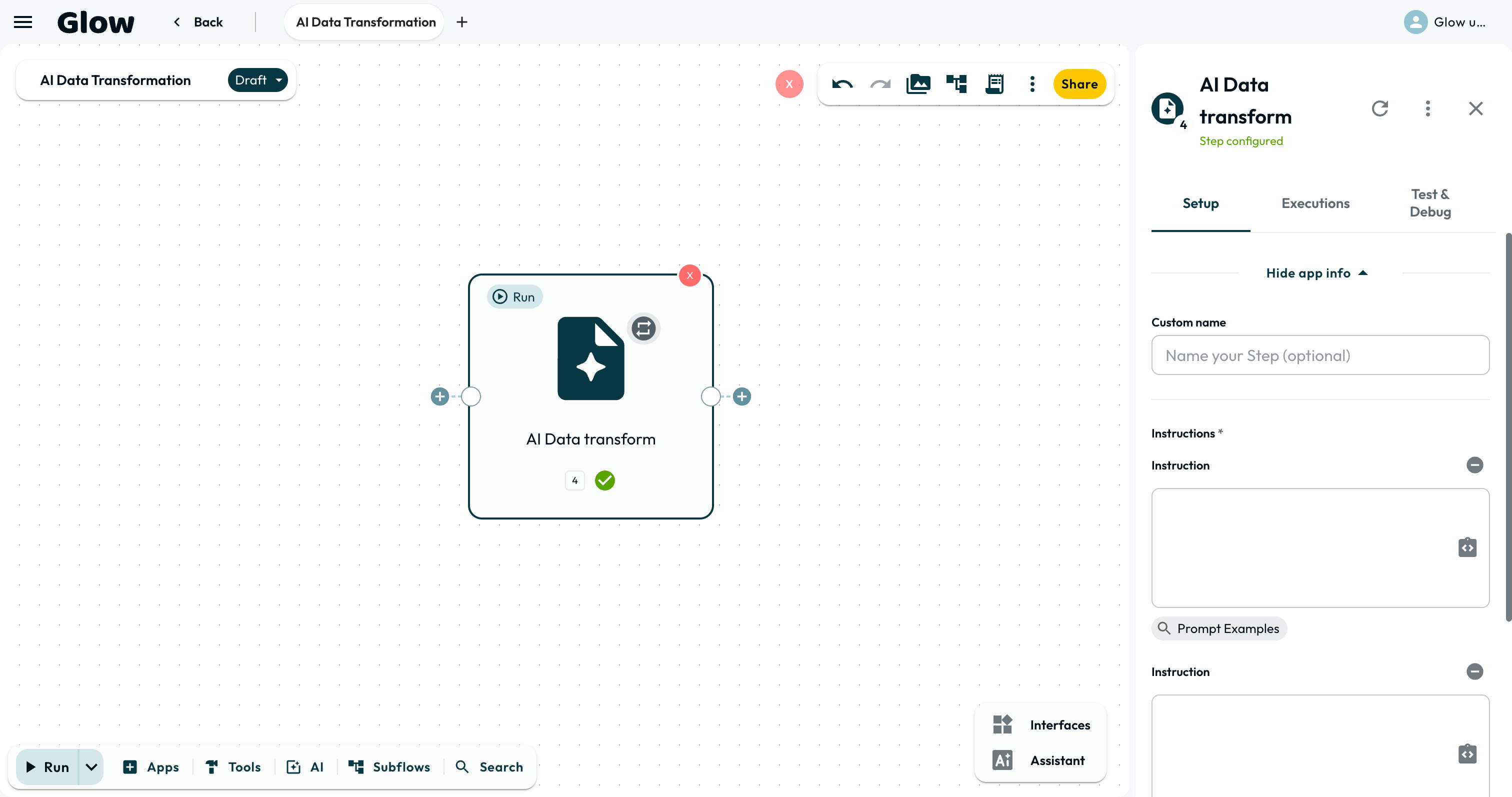
AI Data Transform extracts or reshapes up to three values from unstructured text in parallel. Give it up to three plain-language instructions and it hands back one positional answer per instruction, in the order you wrote them.
- Use it to
- Extract or reshape up to three values from unstructured text with plain-language instructions
- Find it
- Tools → AI → AI Data Transform
- Cost
- 0 Step credits · Uses Glow AI tokens
- Limits
- Up to 3 instructions per Step
- Output
- {{ N.result }}
- Instead
- Change Fields or inline pipes (when the transformation rule is deterministic)
Use it for text without a fixed shape, such as a customer email, receipt text or a meeting transcript. Extract text from scans before supplying it in the instructions.
AI Data Transform or AI Prompt?
Both use Glow’s managed models, and both see only the data you reference. AI Prompt makes one answer call with optional shape repair; AI Data Transform makes one concurrent call per instruction. The other difference is the shape of what comes back:
| You want | Use |
|---|---|
| Up to three ordered values from one text | AI Data Transform: one positional answer per instruction |
| One answer, worded or structured your way | AI Prompt: one result using Text, JSON, or Separate fields |
For a single value, either works. AI Data Transform needs less setup; AI Prompt gives you control over the answer’s wording and structure.
Setting it up
Add the step
Open Tools in the dock and choose AI Data Transform. On the canvas, right-click and pick it under Data.
Write one instruction per value
The step has one field: Instructions, a list of up to three entries. There is no separate input box. Point each instruction at the text by step number, the same way you reference a value anywhere else:
Extract the customer’s order number from
{{ 2.ret.body }}
The step sees only what your instruction references. Use the data picker to insert the reference rather than typing it: the path depends on which step produced the text.
What it passes on
The step runs your instructions in parallel and returns one answer per instruction, in the order you wrote them:
| Reference | What it holds |
|---|---|
{{ N.result.0 }} | the answer to your 1st instruction |
{{ N.result.1 }} | the answer to your 2nd instruction |
{{ N.result.2 }} | the answer to your 3rd instruction |
Because the answers are positional and always returned as Text strings, reordering your instructions changes what every later reference points at. If an instruction returns a JSON list or object as text, parse it inline with {{ N.result.0 | parse_json }} or use Parse JSON (or use AI Prompt with Separate fields for typed, named fields).
Limits
You can add up to three instructions. For a fourth value from the same text, use AI Prompt with Separate fields, which returns named fields in one result.
Check extracted values against the source text, especially when OCR is incomplete or wording is ambiguous. A completed AI Step can still return incorrect values.
For anything that costs money or cannot be undone, put a Human Review step between the extraction and the action. A person then sees the values before they are used.
Examples to copy
Reach for AI Data Transform when the information you need is in there somewhere but never in the same place twice:
- A receipt or invoice: instruction 1 asks for the supplier, instruction 2 the total, and instruction 3 the due date. Read them as
{{ N.result.0 }},{{ N.result.1 }}and{{ N.result.2 }}. - An inbound email: extract the sender’s job title, their company size and what they are asking for.
- A meeting transcript: extract the owner, the agreed action and its due date.
If the text always arrives in exactly the same shape, Split Text or Parse JSON can process the defined structure without an AI call.
- Run
- Add up to three instructions referencing an upstream text field and click Run step in Test & Debug
- You should see
- The Step returns a positional array under {{ N.result }} where {{ N.result.0 }}, {{ N.result.1 }}, and {{ N.result.2 }} match the order of your instructions.
What’s Next?
- 👉 AI Prompt →: extract and validate named fields with Separate fields.
- AI Agent: handle multi-step reasoning, tool execution, and document lookups.
- Human Review: gate critical extractions before executing irreversible actions.