Activity
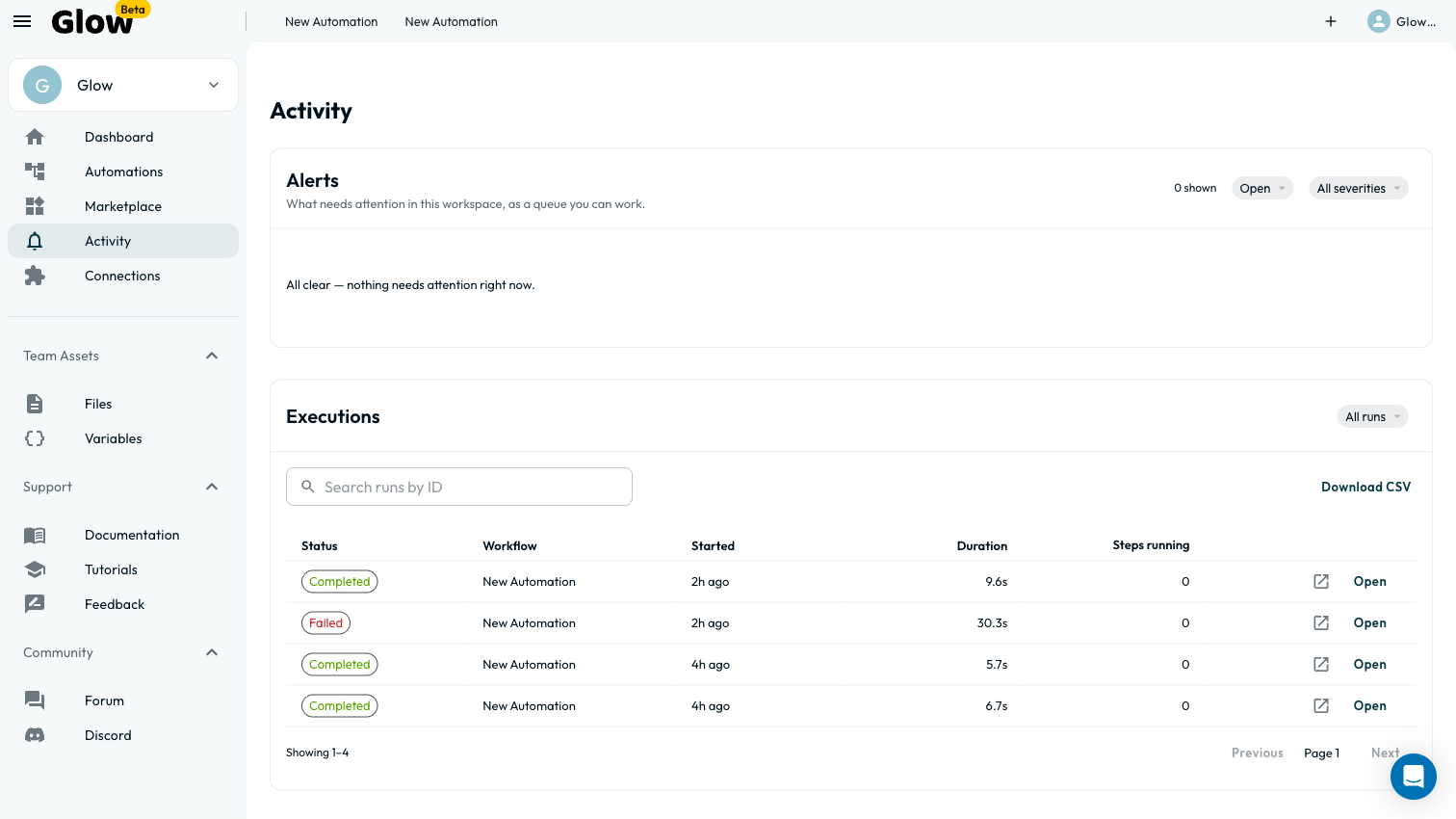
Monitor workspace runs, triage shared alerts, and export the administrative audit trail from Activity. Activity answers: What happened across the workspace, and which runs or alerts need attention? For one automation’s run history, use its Execution Log; open a Step’s Executions tab for recorded input and output.
- Use it to
- Monitor workspace-wide runs, resolve shared alerts and approvals in Waiting on you, and export the compliance audit trail
- Find it
- Left sidebar → Dashboard and Activity, and Team settings → Governance → Audit trail
- Limits
- Execution history defaults to 30 days · Audit trail entries are retained for the lifetime of the workspace
- Instead
- Canvas Execution Log (to inspect step-by-step payloads for a single automation)
Admins, Managers, and Members can use these workspace views. Viewers have a separate metadata-only view of permitted automations and ordinary run summaries, not access to Activity or the shared alert queue.
Choose a workspace view
- Dashboard: Review execution metrics, usage, recent runs, and a compact Waiting on you queue.
- Activity: Choose Open activity from the dashboard to search the chronological workspace event log. Filter by All activity, Runs, Automations, People, or Connections.
- Waiting on you: Open the full shared queue using View all on the dashboard. Despite its name, it is not limited to items assigned to your account.
Dashboard metrics
| Dashboard card or action | What it shows and who can use it |
|---|---|
| Executions & Success rate | Counts completed successful and failed automation runs (not individual Step executions) over 24 hours, 7 days, or 30 days. |
| Live automations & Waiting on you | Shows active automations and a compact preview of up to three unassigned or self-assigned alerts alongside the workspace total. |
| Top failure sources | Breaks down failed Steps by app or Step type so you can spot authentication errors, timeouts, or rate limits. |
| Usage this month & Automation usage | Shows workspace meters for Step credits, Glow AI tokens, and Storage, plus per-automation consumption where billing permissions allow. |
| Quick actions | Create automation, Open activity, and Invite teammate (Admins can invite any role; Managers can invite Members or Viewers). |
Waiting on you
The full queue is shared across the workspace. Use View all on the dashboard to open it. Admins, Managers, and Members can triage alerts they have access to; Viewers cannot. Unresolved items are grouped with failures first, then approvals, then informational alerts. Use Load more on the full page to see additional items.
Inspect the alert
Open its menu and choose Show detail. Opening the detail marks it read for you, but leaves the shared task open. For a failed run, use Open run log or Show full log to investigate.
Coordinate ownership
Use Assigned to in the detail view to record who is handling the item. Assignment neither grants approval access nor reserves the decision for that person.
Investigate the automation
Use Open in canvas when available to inspect the affected Step. For an AI Agent tool approval, Approve submits the decision directly. For a Human Review task, Review opens the review page with resolved context values so you can confirm a decision.
Approval requires current access to the automation as an Admin, Manager, or Member, and a request that is still pending and unexpired. Receiving an email or being assigned the alert does not replace those checks.
Resolve the alert
Use Mark as resolved from the menu, Resolve in the detail view, or Mark all as resolved on the Dashboard count once handled. Resolving an alert never hides a pending Human Review task or an AI Agent action waiting for a decision. The confirmation’s Undo reopens resolved alerts; it does not reverse an approval or an automation’s actions.
| Action | What changes |
|---|---|
| Read | Your personal unread status. The task stays open for the workspace. |
| Resolve | Shared alert status. It does not repair an automation or submit a review decision. |
| Approve | The actual pending decision, allowing the approved action or run to continue. There is no Undo. |
Notifications
The header bell shows your unread notifications, not the workspace’s total open tasks. It includes alerts assigned to you and new, unassigned alerts, but not alerts assigned to a teammate.
Selecting a notification marks it read for you. Mark all read clears your unread notifications without resolving or approving anything. Opening the bell alone does not mark items read. Use Open activity for the workspace event log.
Live activity and execution history
The dashboard’s Live activity feed shows recent runs, with Running entries first. Filter it by All, Needs attention, or Succeeded. On the Activity page, Running now appears at the top whenever runs are in progress, showing current Step progress and a Cancel run action. Admins can also see governance, impersonation, portability, and billing events; actions under impersonation record both the operator and target identities.
Execution history follows your workspace retention policy, with a default period of 30 days after a run finishes. See Data Retention.
Audit trail and CSV export (Admin)
Workspace Admins can inspect and export the full administrative Audit trail under Team settings → Governance → Audit trail (/app/[team]/settings?section=governance):
- What it records: Chronological events grouped by day (
Today,Yesterday, date). Recorded events include automation lifecycle changes, Data Store mutations, app connections, secret reveals and rotations (key names only), membership changes, and MSP sessions. - CSV export (
Export audit trail): Click Export audit trail to download the full history as<team-slug>-audit-trail-<YYYY-MM-DD>.csv(Time (UTC),Event,Event key,Actor,Detail). - Retention: Unlike the 30-day execution history window, audit trail entries are kept for the lifetime of the workspace.
From a run to one Step
Open the affected automation in the canvas, select the relevant Step, and use its Executions tab for input, output, and attempt details.
- Authorization errors: Ask the connection owner to reconnect or coordinate secret rotation.
- Timeouts: Check the destination service to confirm whether it completed the request before retrying.
- Rate limits: Follow the provider’s retry guidance and review the automation’s error handling.
A retry can repeat an external write. Check what already happened before rerunning a failed operation.
- Run
- Open Activity → Audit trail, filter by category, and click Export CSV
- You should see
- Glow downloads a CSV file containing the filtered workspace events, actors, and timestamps.
What’s Next?
- Step-Level Executions: inspect the input and output of the Step that needs attention.
- Error Handling & Retries: configure future retry and error-route behavior.
- Troubleshooting & Common Errors: look up a symptom or exact error message.