Secrets and Variables
Store workspace variables, encrypted secrets, and API keys once so your automations can reference them by name. Use ordinary variables for non-sensitive settings and encrypted secrets or API keys for credentials. References keep credentials out of saved field text, but the automation receives the plaintext value when it uses them.
- Use it to
- Store plain Variables, encrypted Secrets, and API keys once for reuse across workspace automations
- Find it
- Left sidebar → Variables
- Limits
- Key names: 1 to 64 uppercase characters [A-Z0-9_] · Blocked in unsafe sinks (SECRET_IN_UNSAFE_SINK)
- Output
- {{ $var.NAME }}, {{ $secret.NAME }}, {{ $key.NAME }}
- Instead
- Custom Variables Step (for temporary values scoped to a single run)
Finding them
Select Variables in the workspace sidebar, then open Team. If the workspace has no shared values, the page shows an introduction with cards for variables, secrets, and API keys. The preview rows are examples, not saved values. Admins and Managers can select a type card to open its creation form. Members can read the introduction but cannot create values.
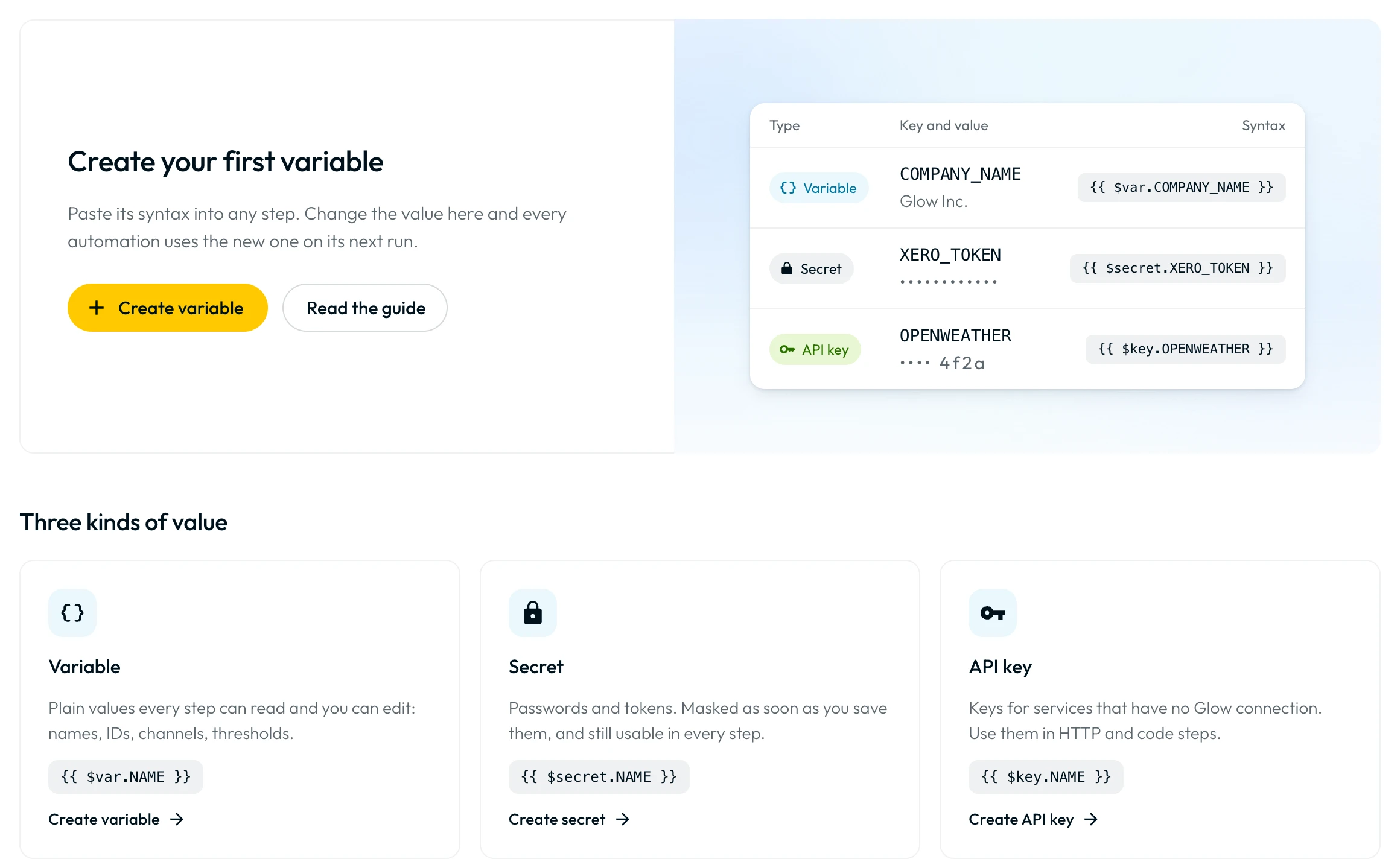
After the first value is saved, the table, search, and filter controls appear. Use Filter to select a type, or search by key, ordinary variable value, or the name of an automation that uses it. Hidden values are not searched.
Select the automation count beneath a key to see the automations and Steps that reference it. This list respects automation visibility and excludes archived automations; an empty list is not proof that no running or suspended execution still needs the key.
The System tab lists read-only values provided by Glow. Create shared values on Team, not System.
Create a variable, secret or API key
Admins and Managers can create shared values using the same form.
| Type | Value field | Save action | Example reference |
|---|---|---|---|
| Variable | Value | Create variable | {{ $var.REGION }} |
| Secret | Secret value | Create secret | {{ $secret.SIGNING_SECRET }} |
| API key | Key | Create API key | {{ $key.STRIPE_API_KEY }} |
Choose a type
Open Variables → Team. Select a type card on the empty page, or choose the type from Create new. Switching types resets the name and clears the value, so choose before typing.
Enter the name and value
Enter a Name unique across the workspace’s variables, secrets and API keys, then fill the value field above. Glow capitalizes letters and replaces unsupported characters with underscores. Check the reference preview.
Save and copy the reference
Select the matching create action. Copy the saved row’s reference from Syntax.
Variables store plain text, including multiline text and pasted JSON; JSON is not converted into an object. Secrets and API keys are encrypted before storage and hidden in the table. Creating an API key here stores an existing credential; it does not issue one at the provider or create an app connection.
Admins and Managers can use Reveal value in a hidden value’s row menu to show it for 10 seconds, or Hide to conceal it sooner. Each reveal is audited.
Referencing secrets in automations
Copy the exact reference from Syntax into a Step field that supports dynamic values, such as an HTTP authorization header. Include both $ and double braces: a secret named SIGNING_SECRET uses {{ $secret.SIGNING_SECRET }}. Rotation keeps the same type, key and reference.
A secret reference sends the resolved value to its destination. Glow
refuses workspace secrets and API keys (SECRET_IN_UNSAFE_SINK) in Data
Store steps, AI prompts (AI Prompt, AI Agent, AI Data
Transform, and AI rules in Conditions or Filter), and Subflow
inputs. For external HTTP requests and app actions, hiding the value on the
Variables page does not prevent an automation builder from sending it to an
endpoint.
Rotate, update, or delete a value
As an Admin or Manager, open Variables → Team and use the row’s three-dot menu:
Rotate a Secret
Review dependent automations
Check the key’s automation count and create the replacement credential at the external provider first.
Replace the value
Open the row’s three-dot menu, choose Rotate value, enter New value, and confirm Rotate value. Rotation is audited, keeps the existing reference ({{ $secret.KEY }} or {{ $key.KEY }}), and does not retain the previous value for undo.
Coordinate changes across running automations. Values are resolved when a Step runs, and Steps can reuse the previous value for up to 10 seconds after a rotation or edit. Switching an automation to Draft does not stop in-flight runs. If a credential is compromised, revoke it at the provider promptly.
Security notes and limits
| Setting or limit | Rule |
|---|---|
Name (key) | 1 to 255 characters; uppercase letters, numbers, and underscores ([A-Za-z0-9_]+), unique across the workspace |
Value (value) | 1 to 65,536 characters (64 KiB UTF-8) |
| Description | Up to 1,024 characters |
Reveal window (Reveal value) | Shows a hidden Secret or API key value for 10 seconds (Admin and Manager only; every reveal is audited) |
| Runtime cache after edit/rotate | Running Steps can reuse the previous value for up to 10 seconds after a rotation or edit |
- Automated multi-encoding log redaction: Run processing replaces exact secret values (plus JSON-escaped, URL-encoded, Base64, and hex encodings of secrets 6 characters or longer) in results and errors with
[REDACTED]. If the workspace’s secret list cannot be read, Glow fails closed and withholds the Step output ([withheld: secret redaction unavailable]). As a defense-in-depth practice, never print or return raw credentials in Step outputs. - Cross-workspace exports: Credentials do not transfer when moving an automation to another workspace. Create destination credentials and verify references before running.
- Role access: Only Admins and Managers can create, edit, reveal, rotate, or delete values. Members can reference all team variables in automations (
Use team variables (values hidden)). In the Variables table, Secret and API key values are masked (••••••••••••) and cannot be revealed by Members, while plain Variable ({{ $var.NAME }}) values remain visible. Viewers have no access to the Variables page.
- Run
- Create a Variable or Secret on the Variables page and reference it as {{ $var.NAME }} or {{ $secret.NAME }} in a Step
- You should see
- The Step resolves the value at runtime, while Secret and API key values appear as [REDACTED] in logs.
What’s Next?
- Compare connections, secrets, workspace variables, files, and literals in Where Data Lives.
- Reference a secret correctly inside a step using the Variable Reference Syntax.
- Hold run-scoped values that do not belong in a secret with Custom Variables.