Permissions and Access
Control who can view, edit, and administer your workspace using roles, automation visibility, and partner delegation. Your account identifies you; your workspace role and each automation’s visibility determine direct access. An MSP delegation grant gives an approved partner a separate access path.
- Use it to
- Assign Admin, Manager, Member, and Viewer roles and control automation visibility (Private, Team, Public)
- Find it
- Workspace menu → Members and invites, and canvas Share popover
I need to…
| Task | Guide |
|---|---|
| Invite someone or change their role | Manage members |
| Remove direct workspace access | Remove a member |
| Choose who can open an automation | Automation Visibility and Sharing |
| Change or end partner access | Three ways to stop access |
| Understand workspace versus payer authority | Payer accounts and workspace access |
The access model
A team and a workspace are two views of the same boundary. The team is the people and their roles. The workspace holds the automations, app connections, variables, secrets, files, billing, and settings.
These are separate access paths, not a complete authorization flow. A partner can have both. Review Members and invites for direct membership and Team settings → Governance for delegation.
Account, team, and workspace roles
Your account follows you across every workspace you belong to. Profile settings and personal 2FA apply to you, while your role can differ in each workspace. Each higher role includes everything the lower roles can do (Admin ⊃ Manager ⊃ Member ⊃ Viewer).
| Capability | Admin | Manager | Member | Viewer |
|---|---|---|---|---|
| What each role can do (each higher role includes all lower-role capabilities) | ||||
Billing, payment, and subscription Manage subscriptions, payment methods, invoices, and usage safeguards | ✓ Full billing | Usage only (not billing) | Usage only (not billing) | – |
Invite, remove, and change roles Send workspace invitations (up to 20 per batch), change roles, and remove members | ✓ Anyone | Members and Viewers | – | – |
Review join requests Approve or deny requests from shared automation links | ✓ | ✓ | – | – |
Variables, secrets, and API keys Create, edit, reveal (10s, audited), rotate, or use shared values in automations | ✓ Manage & reveal | ✓ Manage & reveal | Use team variables (secret values hidden) | – |
Build and run automations Create, edit, test, and publish shared Team automations and your own Private automations | ✓ | ✓ | ✓ Team & own private | – |
Visibility, handover, permanent delete, API keys, Marketplace Choose who sees an automation, hand over ownership, delete from Archive, rotate trigger API keys, or list on Marketplace | ✓ Any shared automation | ✓ Any shared automation | Own automations only | – |
Copy an automation to another workspace Duplicate a workflow across workspaces you belong to | ✓ | – | – | – |
Disconnect another member's app connections Disconnect workspace connections created by other teammates | ✓ | – | – | – |
Connect apps and manage files Add and manage your own app connections and upload or manage workspace files | ✓ | ✓ | ✓ | – |
Watch shared automations live & run history Open shared automations on the canvas and view run history and step status | ✓ | ✓ | ✓ | ✓ Read-only (metadata only) |
Open Members and invites from the workspace menu to manage membership (see What each role can do on that page). Viewers open shared automations on a live read-only canvas (View only). They see permitted run metadata and step status, not configuration or execution payloads. See Members & Invitations.
Workspace Admin and payer administrator are different authorities. Workspace billing controls are Admin-only (Managers and Members see Usage, not Billing), and that role does not expose a sponsor’s invoices or payment details. See Payer accounts and workspace access.
| Workspace resource | Create or use in automations | Manage, rotate, or delete |
|---|---|---|
| App connections | Admins, Managers, and Members (Viewers cannot) | Connection owner renames, reconnects, or disconnects; Admins can disconnect any workspace connection (and manage OpenRouter connections). |
| Variables, secrets, and API keys | Resolved at runtime (Use team variables (values hidden)); Secret and API key values stay hidden (••••••••••••) | Admins and Managers create, edit, reveal (10 s, audited), rotate, and delete (Secrets and Variables). |
| Files | Admins, Managers, and Members (Viewers have no access) | Admins, Managers, and Members can upload, rename, move, duplicate, and delete. |
| Automation administration | Builders edit according to role and visibility | Permanent deletion from Archive, trigger API key rotation, and Marketplace publishing require Admin, Manager, or owner access. |
Who can…? (Quick answers)
- Who can view Billing vs. Usage? Only Admins manage Billing, payment methods, and subscriptions. Managers and Members see Usage and Pricing (
See usage, not billing). Viewers have no access to Billing and usage. - Who can approve join requests? Admins and Managers review requests under Members and invites → Join requests. Approving a request adds the person as a Member.
- Who can change an automation’s visibility or hand it over? The automation’s owner, or an Admin or Manager on any shared (Team or Public) automation. Another member’s Private automation stays private.
- Can the last Admin leave the workspace? No. Glow blocks the departure with “You are the only admin. Promote someone to Admin before you leave.” Promote another member first, or delete the workspace if you are the last member.
Automation visibility is a separate layer
An automation’s visibility works on top of workspace membership and role. Admins choose the starting visibility for new automations under Team settings → General → Defaults for new work. Check each automation’s Share setting, especially after copying or importing it:
| Visibility | Who can open it | What that means |
|---|---|---|
| Private | Only the owner | Other workspace members cannot see it |
| Team | Everyone in the workspace | Admins, Managers, and Members can work on it. Viewers get the live read-only canvas and metadata |
| Public | Anyone with the link | External visitors get a live read-only view of the canvas shape |
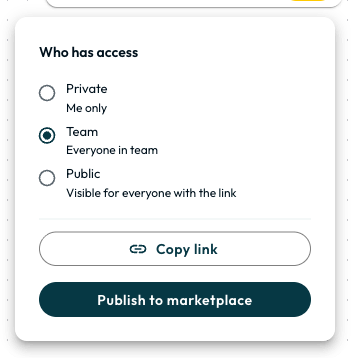
- Public visitors: See step names, apps, sticky notes, collaborator cursors, and connections in real time. They never see step configuration, accounts, secrets, or run history.
- Changing visibility: The automation owner, or a workspace Admin on a Team or Public automation, can change its visibility.
- Request edit access: Approving a signed-in outsider’s request on a Public automation adds them to the workspace as a Member.
Sign-in security does not grant workspace access
SSO controls how a person proves their identity. Workspace membership and roles are still managed through Members and invites. 2FA protects an individual password-based Glow account in Your account → Security. Your identity provider’s MFA policy applies only to sign-ins through that provider. Review all allowed sign-in paths with your account team before relying on workspace-wide MFA enforcement.
MSP delegation is another access path
A consultancy or MSP reaches a client workspace through a delegation grant (Read-only or Full operational). Impersonation requires separate consent on a full-operational grant. It lets an operator act temporarily as a selected client Admin within the grant’s scope.
- Run, inspect, and repair automations using existing workspace app connections.
- Create, edit, or delete automations, files, and workspace variables or secrets within the permitted operational scope.
- Billing, team settings, membership, governance, and account-security changes.
- App-connection lifecycle changes (creating, reconnecting, or disconnecting connections) and stored-secret reveal.
Review delegated access and data exposure before approving impersonation. Automations and workspace resources remain in the client workspace when governance ends.
Review both access paths at the end of an engagement. Leaving MSP management ends the delegation grant and active impersonation sessions. It does not remove a direct team membership held by a partner’s employee. Check both Team settings → Governance and Members and invites.
- Run
- Open Members and expand What each role can do
- You should see
- Each member's role badge (Admin, Manager, Member, Viewer) matches the permissions they have in the workspace.
What’s Next?
- Manage members and workspace roles in Members & Invitations.
- Set access for an individual automation in Automation Visibility and Sharing.
- Review partner tiers, scope, and session controls in If a Partner Manages Your Workspace.