Canvas Tabs
Open multiple automations in tabs along the top of the canvas and switch between them instantly. You can keep several open at once without returning to the dashboard.
At a glanceVerified in app · Oct 30, 2026
- Use it to
- Open, switch between, pin, duplicate, and bulk-close multiple automations inside one browser tab
- Find it
- Top bar of the canvas · Right-click any tab for tab actions, or use Cmd/Ctrl + Alt + ←/→/W/T/N/1...9
- Limits
- Each open tab maintains its own independent undo/redo history and live presence cursor
Managing tabs
Right-click on any tab to open the tab management options (when tabs overflow, the chevron at the far right opens Search open workflows):
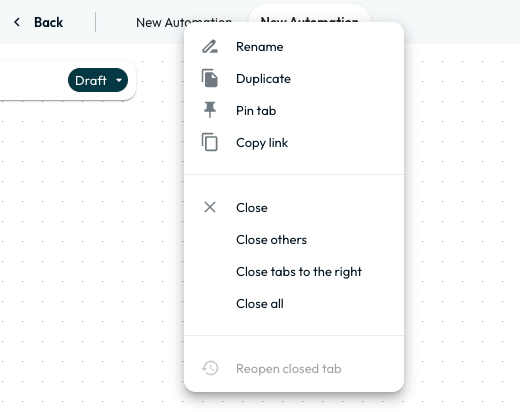
- Rename: Change the automation’s name without opening the settings panel.
- Duplicate: Create a copy of the current automation in a new tab. Useful for testing a risky change, or for turning a working automation into a template.
- Pin tab: Lock important automations to the left side of the bar so they are always accessible and take up less horizontal space.
- Copy link: Grab a direct URL to the automation to share with a teammate.
Bulk closing
After a long building session, bulk actions clear the tab bar in one go:
- Close: Closes the current tab.
- Close others: Keeps only the active automation open and closes everything else.
- Close tabs to the right: A quick way to clear out a batch of newly opened automations.
- Close all: Closes all canvas tabs. It does not delete the automations.
- Reopen closed tab: Brings back the last automation you closed. Useful straight after a Close others you did not mean.
The browser keeps its own tab shortcuts, so Glow’s sit one modifier along:
| Action | Shortcut |
|---|---|
| Next tab | Cmd/Ctrl + Alt + → |
| Previous tab | Cmd/Ctrl + Alt + ← |
| Close active tab | Cmd/Ctrl + Alt + W |
| Reopen closed tab | Cmd/Ctrl + Alt + T |
| New automation tab | Cmd/Ctrl + Alt + N |
| Jump to tab 1 to 8 | Cmd/Ctrl + Alt + 1 … 8 |
| Jump to the last tab | Cmd/Ctrl + Alt + 9 |
Opening an automation in a tab puts you straight onto the live canvas. If a colleague is editing it, you will see their cursor moving as soon as the tab loads.
- Run
- Right-click an open automation tab at the top of the canvas and select Pin tab
- You should see
- The tab locks to the left side of the tab bar so it stays accessible while you switch between other automations.
What’s Next?
- See what happens when several people share a canvas in Real-Time Editing.
- Move between tabs without the mouse using Keyboard Shortcuts.
Last updated on