Navigating the Dashboard
Find your automations, monitor live execution activity, and open connections, files, and workspace settings from the Glow dashboard. Signing in opens this view, with the left sidebar holding every workspace section.
- Use it to
- Navigate automations, execution metrics, Waiting on you tasks, connections, files, variables, and workspace search
- Find it
- Left sidebar → Dashboard (or press Cmd/Ctrl + K from any view)
- Limits
- Archived automations remain recoverable for 30 days and restore switched off
- Instead
- Execution Log (/build/the-canvas/execution-log) when inspecting step-by-step payloads and errors inside a specific automation
| Workspace state | What the dashboard shows |
|---|---|
| New workspace | Prompt box, suggested prompts, template suggestions, overview video, monthly usage, and a setup guide for connecting an app and building an automation. |
| Active workspace (has an app connection and a non-archived automation) | Execution KPI cards, the Executions chart, the Waiting on you task queue, and recent activity. Removing items later does not bring the setup guide back. |
The sidebar
The sidebar down the left holds everything in the workspace. Your workspace name sits at the top; clicking it switches to another.
While setup is unfinished, the expanded desktop sidebar includes a Get started card with progress and the next task. Select it to return to the dashboard’s setup guide. The card disappears when setup is complete and is not shown in the collapsed sidebar or on smaller screens.
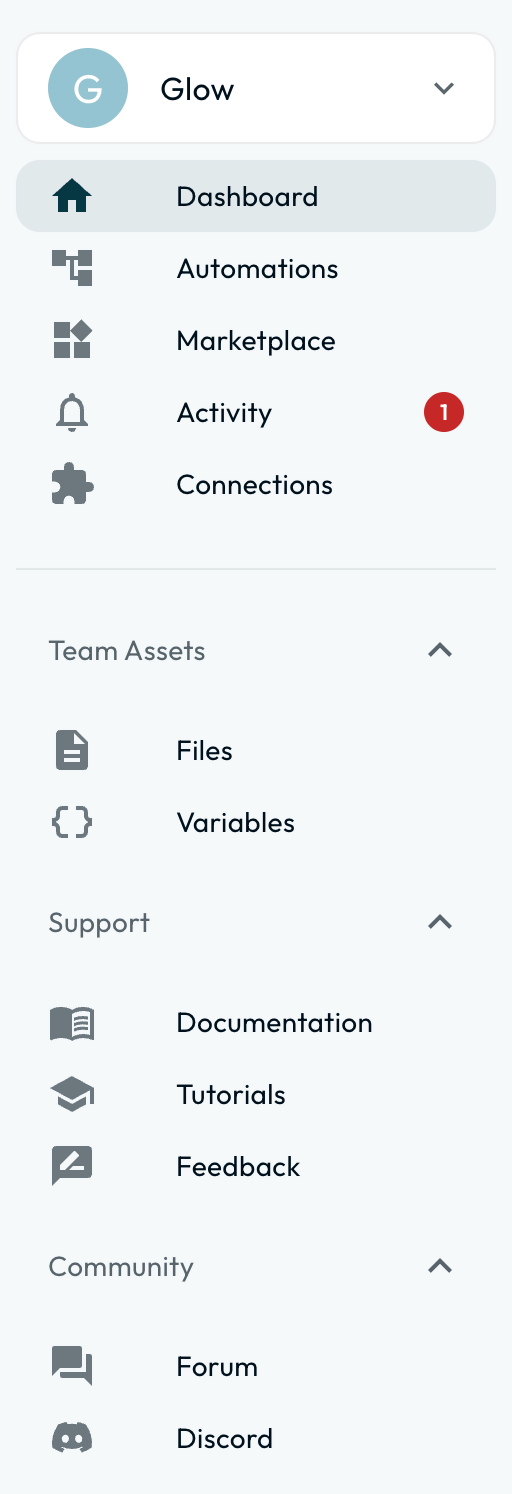
| Item | What it holds |
|---|---|
| Dashboard | Workspace overview: KPI cards for Executions (with prior-period comparison), Success rate, Live automations, and Waiting on you; the Executions chart (24h, 7d, 30d); the Waiting on you task queue; and Live activity. |
| Automations | Your automations, as cards or a list, with status and last-run information. Filter by Live, Paused, Draft, or Broken. “What would you like to automate today?” drafts an automation from your description. |
| Marketplace | The public template gallery. |
| Connections | The apps this workspace has connected, and the full library of integrations you can connect. |
| Deployment | Deployment: publishable automations, saved versions and their destinations, including automations not yet deployed. |
| Files | Workspace file management: files your automations read or write at run time. |
| Variables | Shared variables, encrypted secrets, and API keys in one table. See Secrets and Variables. |
Below those are Support, Community and workspace usage meters. Workspace entries also depend on your role.
| Section | What is in it |
|---|---|
| Support | Documentation, Tutorials, Chat with support, and Feedback submissions. |
| Community | Links to the forum and Discord. |
| Usage | Meters for Step credits, AI tokens and storage in the current workspace. |
On a phone, open the navigation menu, expand Support, and select Chat with support. The floating chat bubble is hidden while the signed-in bottom navigation is visible.
The header
The header keeps navigation and personal controls in reach:
- Search: click the search icon or press Cmd/Ctrl + K. Enter at least two characters to find automations, templates, files, people, and settings in the current workspace. Selecting a file downloads it.
- Notifications: the bell shows your unread alerts. Reading one does not resolve a shared task or approve a request. See Activity.
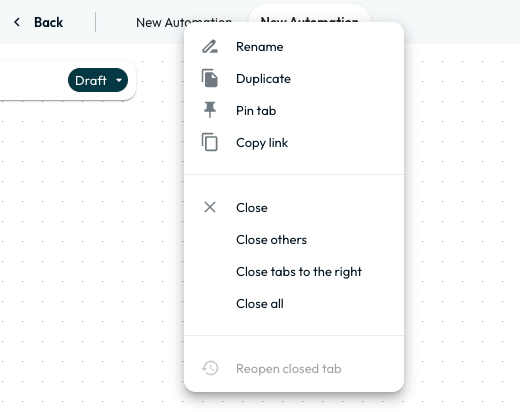
- Open automations: tabs for the automations you have open, so you can move between them without going back to the list. With a tab focused by keyboard, press Delete to close that tab. This closes the tab, not the automation.
- Your name, top right, opens your profile menu. Choose Your account, Password and security or Preferences to go directly to the relevant account settings tab.
The workspace menu
Clicking your workspace name at the top of the sidebar opens a short menu.
| Item | What it does |
|---|---|
| Team settings | Workspace details, defaults for new work, notifications and governance. See Workspace Settings. |
| Members and invites | The member directory, roles, pending invitations and Admin join requests. See Members & Invitations. |
| Billing and usage | Usage and pricing for Admins, Managers and Members; financial details and billing management for Admins. See Billing & Usage. |
| Your teams | Switch to another workspace you belong to, or select + Team to create one. |
Finding your way around
| Task | Where to go |
|---|---|
| Create an automation | Create automation on the dashboard, or Create new → Workflow under Automations |
| Import from n8n or Make | Import JSON under Automations |
| Group automations together | Create new → Folder under Automations |
| Find an archived automation | Filter → Archive under Automations |
| Connect an app | Connections |
| Store an API key | Variables |
| Upload a file a flow uses | Files |
| See what you have published | Deployment |
| See what needs attention | Waiting on you → View all on the dashboard |
| Open Activity Log | Open activity on the dashboard |
| Invite a teammate | As an Admin or Manager: Invite teammate on the dashboard, or workspace menu → Members and invites |
| Check credit usage | Workspace menu → Billing and usage → Usage |
| Switch workspace | The workspace name at the top of the sidebar |
| Browse templates | Marketplace |
| Change your password | Your name, top right → Password and security |
When Automations is empty, you can describe an automation in the prompt box, click Create automation, or choose Import JSON. Search, folder creation, and view switchers appear once you have content, while Filter → Archive is always available.
Keeping the list manageable
Folders
- Create and organize: Under Automations, choose Create new → Folder, name it, and pick a color. Drag cards onto folders or use Move to folder….
- Search scope: Search workflow and status filters cover accessible automations at the top level, or stay inside the current folder.
- Clear filters: Status or author filters hide folders from results. Choose Filter → All workflows to clear the status filter.
Folders organize your view; they do not change workspace permissions.
Archive
| Action | Behavior | Recovery |
|---|---|---|
| Archive | Moves the automation to Filter → Archive. | Recoverable for 30 days. Restores switched off; review before turning it on. |
| Delete | Removes the card immediately and shows an Undo toast before permanent deletion. | Permanent after Undo expires. Automations referenced by another workflow move to Archive instead. |
Deleting from Archive is also permanent. To keep an inactive automation indefinitely, leave it in Automations switched off.
- Run
- Press Cmd/Ctrl + K from any dashboard view and type two characters of an automation or setting name
- You should see
- The workspace search modal lists matching automations, templates, files, teammates, and settings.
What’s Next?
- Set up who can do what in Setting Up Your Team.
- Build something with the step-by-step tutorials.