File Management
Upload files to your team workspace and reference them from any automation. Store templates, configuration files, data sets, or any other assets your automations need.
- Use it to
- Upload reusable templates, datasets, and documents to your workspace and reference them across automations
- Find it
- Left sidebar → Files (All files and Created by workflows)
- Limits
- Up to 100 MB per file · Up to 20 files per upload batch · Text reference inserts up to 512 KiB
- Output
- {{ $file.<id> }} or Step file picker selection
Accessing the files page
As an Admin, Manager, or Member, open Files in the workspace sidebar to view and manage your team’s files. Viewers do not have access to workspace files.
When All files has no files or folders, the page offers your first upload, a guide, and examples of how automations use files. The preview tiles are examples, not files in your workspace. Choose Upload files to begin. Search, folder creation, and the Grid/List switcher appear once the library contains a file or folder; Created by workflows remains available on the empty page.
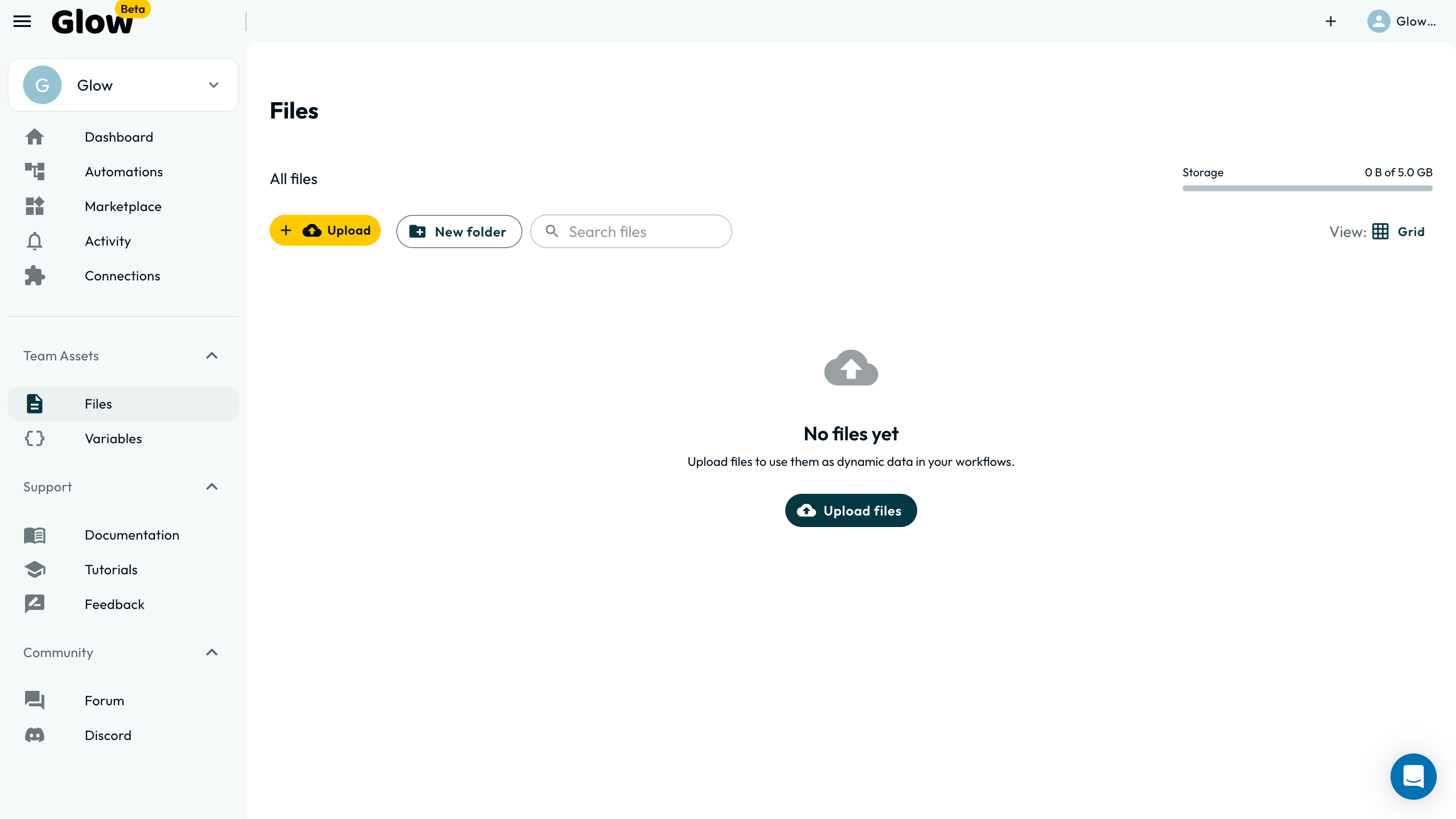
Files appear newest updated first. Switch between Grid and List, or use Search files, folders and uploaders to find files by name, extension, or uploader across folders. Search also matches files in folders whose names are loaded in the current view; it shows matching files rather than folder tiles. Use a file’s Download action to save a local copy.
Select Created by workflows to see files saved by automations, with their automatic deletion dates. This view uses a list and hides folders and upload controls. Return to All files to upload or organize files.
Uploading files
Choose the destination
Open Files. For an empty library, start at the top level. Otherwise, navigate to the folder where the files belong.
Select or drop files
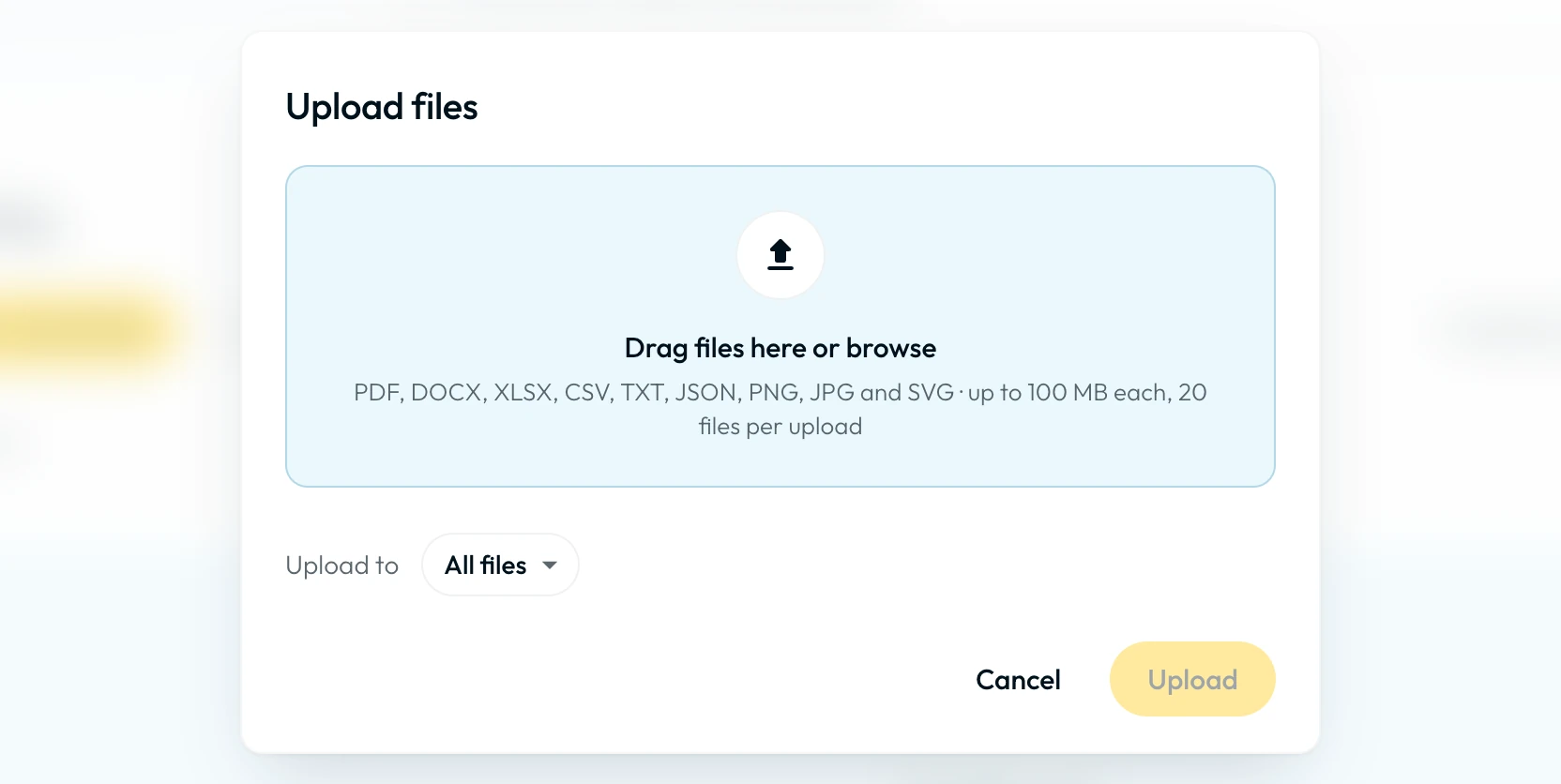
Click Upload files. In the dialog, browse your device or drag files into the drop area. You can select up to 20 files per upload. Selecting files prepares them for review; it does not upload them yet.
Review and upload
Check the selected files and any size or file-type warnings. Under Upload to, confirm the destination folder or choose another. Click Upload 1 file or Upload N files, depending on your selection, to start uploading. Choosing Cancel before this confirmation leaves the selected files unuploaded.
One file can be up to 100 MB. That ceiling is the same on every plan: what your plan sets is the total storage quota shown in the meter, not the size of any single file. A file over the ceiling is rejected rather than truncated. For anything larger, leave it in the service that owns it and pass a reference. Fetch only smaller pages or chunks where the provider supports them; HTTP Request has its own response-size limit and is not a large-file bypass.
Organizing with folders
If the library is empty, upload your first file to show the folder controls. Click New folder, enter a name, choose a color, then click Create folder. Use the folder breadcrumbs to return to a parent folder.
Working with a file or folder
Each file’s menu (⋮) offers Download, Rename, Duplicate, Move to folder, File details, and Delete. Clicking a file tile or row directly also opens File details, which shows its folder path, uploader, and the Used by N automations list (Wrote this file, Reads on every run, and Live or Draft status). Choose Move to folder and pick a destination, or drag a file tile onto a folder in Grid view. Dragging moves that file only, even if other files are selected.
Selecting multiple files opens a toolbar with Download, Move to folder, and Delete for the selection.
Folder menus offer a color picker, Rename, and Delete.
Deleting a folder
Deleting a folder also deletes its nested folders, but not their files. The files move back to the top level of the Files page and keep their existing references. To remove files themselves, use the file-level Delete action, individually or in a selection.
Referencing files in automations
When a Step offers a file picker, select a workspace file that matches the action’s expected input. In fields that support dynamic references, {{ $file.<id> }} can insert text or a short-lived download link. Check the resolved value rather than assuming it supplies file bytes.
Text references include at most the first 512 KiB, not necessarily the whole file. A download link is not the file’s contents and should not be stored as a permanent URL. See file references before using a document as AI context or sending it to another service.
Tip: Use a consistent folder structure such as templates/, data/, and
config/ to keep your file library manageable as it grows.
Permissions
Admins, Managers, and Members can manage team files. Viewers cannot view or manage them.
| Role | View files | Upload/edit/delete files |
|---|---|---|
| Admin | Yes | Yes |
| Manager | Yes | Yes |
| Member | Yes | Yes |
| Viewer | No | No |
Deleting a file affects the whole team. Any Admin, Manager, or Member can delete a team file, and deletion is permanent. Before removing one, check whether a live automation reads it: an automation whose file is gone fails at the step that references it. Keep a source copy of anything you would have to rebuild.
- Run
- Open Files in the workspace sidebar, click Upload files, and confirm an upload up to 100 MB
- You should see
- The uploaded file appears in the Files library and can be selected in Step file pickers or referenced as {{ $file.<id> }}.
What’s Next?
- Assign workspace roles in Members & Invitations.
- Check the storage quota for your plan in System Limits & Quotas.