Automation Visibility & Sharing
Control who can view, comment on, or edit an automation using Private, Team, and Public visibility. An Admin sets the default visibility under Team settings → General → Defaults for new work → New automations are visible to. On the canvas, the owner can change visibility from Share. A workspace Admin can also change it on Team or Public automations.
- Use it to
- Set an automation to Private, Team, or Public, invite collaborators, and manage guest comments and sticky notes
- Find it
- Canvas top-right bar → Share, or Team settings → General → Defaults for new work
- Limits
- Up to 50 concurrent guests on the public canvas · Guest sticky notes up to 2,000 characters
- Instead
- Deploy → Publish template (when packaging an automation for others to fork rather than view live)
Changing the workspace default does not change existing automations. Copies and imports can follow their own visibility rules. Check Share before using or distributing one.
Visibility states
Open Share on the canvas and pick one of three levels under Who can see this automation.
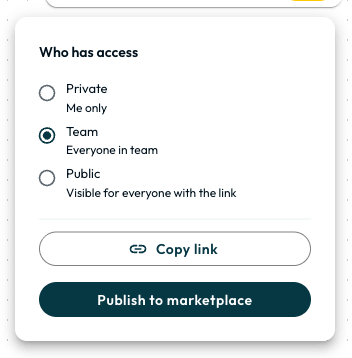
| Level | Visibility audience, subject to role permissions |
|---|---|
| Private | Only the automation’s owner |
| Team | Everyone in the workspace |
| Public | Visible for everyone with the link |
Visibility does not grant editing rights. Review your Step names and sticky notes before sharing a link, as they are visible on the canvas. Step field values, credentials, variables, secrets, and execution payloads remain private to editors:
| Capability | Editor (Admin, Manager, Member) | Workspace Viewer (Team or Public) | Public Link Visitor (Guest) |
|---|---|---|---|
| Canvas & live presence | Full editing, Follow mode, and live cursors | Read-only canvas (View only), Follow mode, and Run metadata link | Read-only guest canvas (up to 50 concurrent guests), animal avatars, and Follow mode |
| Step configuration & payloads | Full access to fields, accounts, and Executions | Hidden (sees Step summary cards only) | Hidden (sees Step summary cards only) |
| Canvas comments | Read, start, reply, and resolve threads | Read, start, and reply to threads | Read and reply under <Name> · Guest when enabled in Share |
| Sticky notes | Create, edit, move, resize, recolour, or delete any note | Read and scroll notes; click links | Read notes; when enabled in Share, press S to place or edit own guest notes (cannot move, resize, or delete) |
- Opens shared automations on the live read-only canvas (View only) with collaborator cursors and Follow mode.
- Can read, start, and reply to canvas comment threads and view Run metadata.
- Cannot edit or run automations, move sticky notes, or inspect Step configuration and execution payloads.
- Joins the live read-only guest canvas without signing in (up to 50 concurrent guests).
- Can post comments and place Guest sticky notes (up to 2,000 characters) when enabled in Share.
- Never sees field values, connected accounts, variables, secrets, or run history.
Admins and Managers also see Invite to canvas in Share to invite people directly to that automation. For a Private automation, Glow warns that invitees cannot see it and offers Make it Team. The Deploy button opens template publishing options; see Publishing Templates.
The public viewer experience
When an automation is Public, external visitors join the live read-only guest canvas without signing in:
- Editable guest identity: Each visitor gets an editable name pill in the top-left header (such as
Anonymous Otter). They also see Glow AI is building… status in real time. - Guest comments and sticky notes (opt-in): While Public is selected, the owner or an Admin can enable Let anyone with the link see and add comments and sticky notes in Share. Guests can then post comments and press S (or click Add sticky note) to place notes marked
<Name> · Guest. Each note accepts up to 2,000 characters of plain text or Markdown (without links or images). Guests can click their own note in the same browser to update its text or colour. Workspace editors can move, resize, recolour, or delete any guest note. - Step summary cards & instant revocation: Clicking a Step shows only its title, app icon, operation name, and catalog description. Switching the automation back to Team or Private closes connected guest views within seconds and clears public commenting.
The bottom button depends on who is looking. Signed-out visitors see Sign up for free, and signed-in visitors from another workspace see Request edit access. Visitors with a pending workspace invitation see Open invitation.
Asking for Access
Request edit access appears on a Public automation for signed-in visitors outside your workspace. It asks to join the workspace, not just that single automation. There is no message box to fill in. Your Admins and Managers see who asked and which automation they viewed.
When an Admin or Manager approves, the person joins as a Member. Members can edit automations visible to them, except another person’s Private automation. Approving a request grants workspace membership, not access to a single canvas. For read-only workspace access, invite the person as a Viewer instead. To share one automation without workspace membership, send a Public link.
Private and Team automations do not offer the public viewer or Request edit access. Their public lookup returns no automation, matching an unknown URL.
- Run
- Click Share in the top-right canvas bar and select Private, Team, or Public under Who can see this automation.
- You should see
- The automation updates its access level immediately, and Public links open the read-only guest canvas for signed-out visitors.
What’s Next?
- See how account security, workspace roles, automation visibility and delegation fit together in Permissions and Access.
- Manage members and workspace roles in Members & Invitations.
- Package an automation for reuse instead of sharing a link in Publishing and Forking.