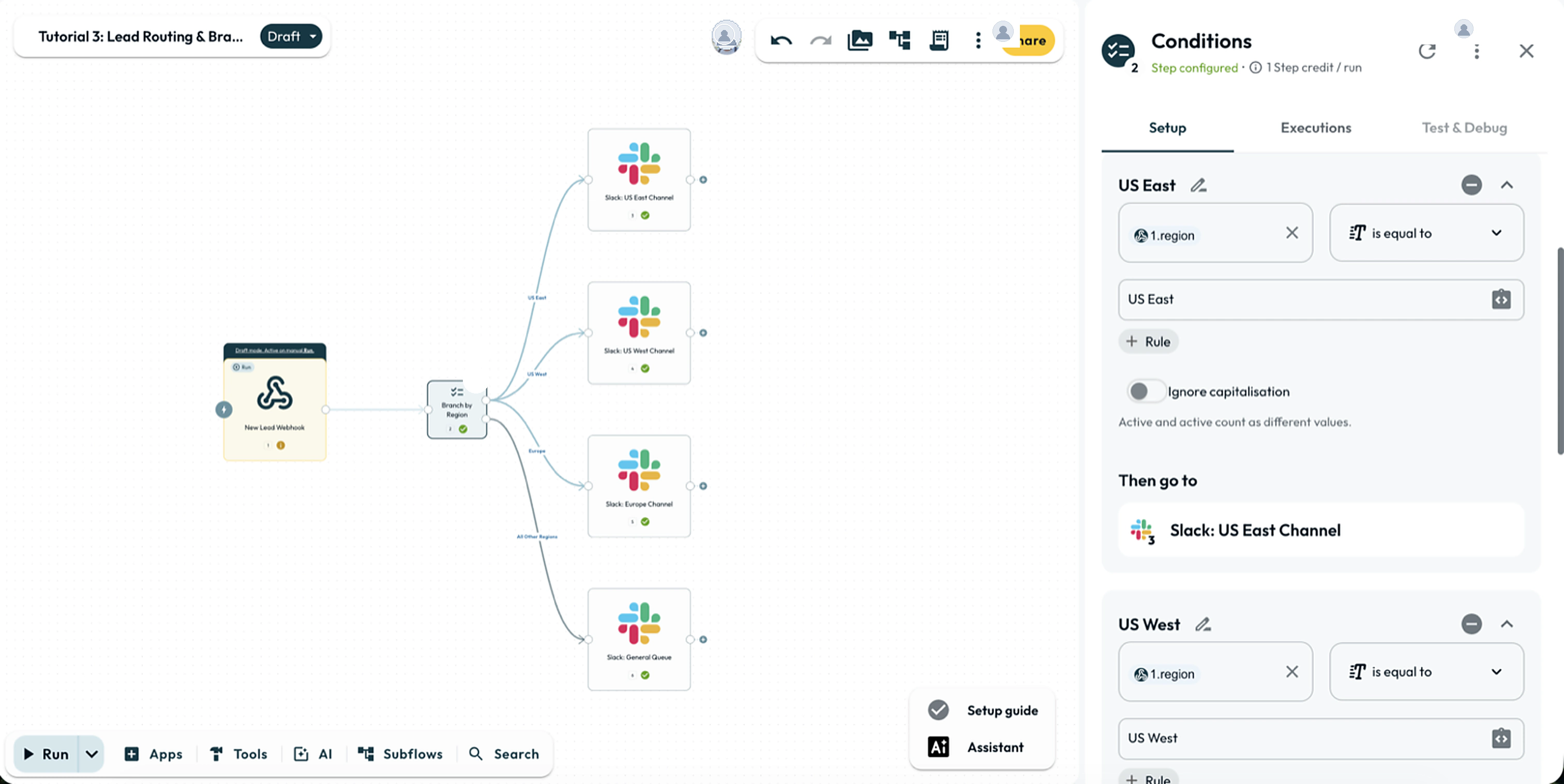
Conditions Step
The Conditions step decides where a workflow goes next. Each condition that is met sends the run down its own route, and an ELSE route catches the case where none are.
Every condition is checked on its own
The most useful thing to know first: Conditions is not a single test with two outputs.
You add as many conditions as you need, and each is evaluated independently. A condition that is met sends the run to the step you point it at. Two conditions can both be met, and both routes run.
- runsDeal size is over 10,000Notify sales
- runsCountry is United KingdomAdd to CRM
- skippedELSE — none matchedLog for review
Both conditions are met, so both routes run. This is the part a first-match step cannot do.
ELSE runs only when no condition is met. It is the catch-all, not the “false” side of a pair.
Conditions is the one that can take more than one route. Where the answer is one of several — a refund, a complaint or a question — Switch is the step, and exactly one route runs. See Choosing a Flow Step for the difference between the three routing steps.
A step with no conditions set passes everything through. The panel says so in place: “All data passes through if no conditions are set.” An empty Conditions step is not a closed gate. It is an open one.
Two kinds of rule
Every rule is one of two kinds, and you pick which when you choose its type. A new rule starts as an AI Condition, so describing the test in words is always available without setting anything up.
| Typed rule | AI Condition | |
|---|---|---|
| How you write it | Pick a type, an operator and a value | Describe the test in plain language |
| How it decides | A comparison | A model reads the value and judges |
| Same input, twice | Same answer, always | Can differ between runs |
| Cost | None | One model call each time it is evaluated |
| Good for | status is equal to active, amount is greater than 10000 | “the message sounds like a complaint”, “the address is outside the UK” |
AI Condition is the one to reach for when the test needs judgement: tone, intent, whether free text describes a complaint. Nothing else in the step can answer those.
Switch the type to a comparison once you know the exact value you are testing. Six types cover the ordinary cases — Text, Number, Yes/no, Record, List, Date & Time — and a comparison costs nothing, answers instantly, and gives the same result every time. On a workflow running at volume, that difference adds up.
You can mix the two in one step. A condition can hold a typed rule and an AI rule together, joined with AND or OR like any other pair.
Setting it up
Add a condition
Click Add new condition. Each condition gets its own Then go to route.
Pick the data to test
Click the left-hand field to open the data picker. It lists System Variables, Team Variables and Secrets, and every step before this one, grouped by step number.
If the step has already run, the picker shows its real values next to each field. You choose email while looking at an actual address.
The picker’s labels are shortened, and they are not the reference syntax.
A field shown as 3.email is the email inside step 3’s output. The real
reference depends on the step: for an HTTP Request or app step it is
{{ 3.ret.email }}, and other steps use a different wrapper or none (see
Variable Reference Syntax). Insert fields by
clicking them rather than typing what the label appears to say.
Choose the type, then the operator
Pick the kind of data you are testing: Text, Number, Yes/no, Record, List, or Date & Time. The operator list changes to match it.
Set the value to compare against
The right-hand field takes text or another dynamic reference. Operators like is empty need no second value, and the field disappears when you pick one.
Point the route at a step
Under Then go to, choose where the run continues when this condition is met. Do the same under ELSE for the case where none are.
Operators
Pick the type first. The operators you get depend on it. Choose Text and you can ask whether text contains a word. Choose Number and you can ask whether a value is over 100. The list changes underneath you, so a type left on the default offers you the wrong questions.
Start here:
| Testing… | Choose | Then reach for |
|---|---|---|
| Names, emails, statuses, any text | Text | is equal to, contains, starts with |
| Amounts, counts, scores | Number | is greater than, is less than |
| A yes/no flag | Yes/no | is true, is false |
| A list, and how long it is | List | contains, length greater than |
| A record with fields in it | Record | exists, is empty |
| A date or timestamp | Date & Time | is after, is before |
| Whether something is there at all | any type | exists, is empty |
Those last four (exists, does not exist, is empty, is not empty) work whatever type you pick, and need no value to compare against. They are the ones to use when the question is “did we get this field?” rather than “what is in it?”.
Where a field may be absent, test that it is there first.
A field that never arrived is not equal to anything, so is not equal to
matches it. That is usually not what you meant: you wanted records whose value
differs, not records that have no value at all.
Click Rule, put exists on the same field, and add the comparison as an
AND rule after it. The condition then covers only the records you meant.
This applies to is not equal to. The other operators return no match for a
field that is absent, so they need no guard.
The full lists, if you want them:
Text
is equal to · is not equal to · contains · does not contain ·
starts with · does not start with · ends with · does not end with ·
matches regex · does not match regex
The last two take a regular expression, a pattern language for matching
text. It is useful for things like “a valid-looking email” or “starts with
three digits”. If you have not met one before, contains and starts with cover
most needs. A pattern that takes too long to evaluate fails the rule rather
than holding up the run.
Combining rules with AND and OR
A single condition can hold as many rules as it needs. Click Rule and choose which kind to add:
| Choice | What it does |
|---|---|
| AND rule | Adds to the current group. Every rule in it must hold |
| OR rule | Starts a new group. Any one group matching is enough |
There is no combinator to set. Rules inside a group are always joined with AND, and groups are always joined with OR — the choice you make is which of the two you are adding, and the panel prints AND and OR between the rows so you can read the result back.
That covers the usual shapes. “Over £10,000 and in the UK” is two AND rules in one group. “Over £10,000 or flagged urgent” is two groups.
A condition with no rules matches everything. An empty group passes, so a route left unconfigured fires on every run alongside whatever else matched. Delete a route you are not using rather than leaving it blank.
Writing an AI Condition
Choose AI Condition as the rule’s type and the operator menu is replaced by a single box: describe what you are testing, in words. Prompt Examples offers starting points.
Write it as a statement that is either true or false of the value in front of it — “this message is asking for a refund” reads better than “check if refund”. The model sees the value you pointed the rule at and nothing else, so anything it needs to judge has to be in that value.
AI Condition is available in Conditions and Filter. The Switch step is typed-only. In Filter it costs a call per item, so a hundred-item list is a hundred calls; in Conditions it is one call per rule, per evaluation.
A rule the model could not answer counts as “not met”. If the call fails or comes back unreadable, that route does not fire and the run carries on — falling to ELSE if nothing else matched. The reason is recorded against the rule in the run’s history, so open the step in Executions when a branch you expected did not run.
That is the safe behaviour for routing, and it is a reason to keep an AI rule off the path where a missed branch would go unnoticed.
What it passes on
After a run, the step’s badge tells you what happened:
| Badge | Means |
|---|---|
| Green tick | A condition was met and the run continued down its route |
| Red X | No condition was met |
A red X with an empty ELSE route means the run stopped there. That is a legitimate design, and it is how you end a branch deliberately. But it looks identical to a mistake, so set an ELSE route if you want the distinction to be visible later.
Limits
Set capitalisation for each text rule
Text is compared exactly, so Active does not match active. To ignore capitals, turn on Ignore capitalisation on the rule itself.
The setting applies to the rule where you turn it on. For a Conditions step with four text rules, set Ignore capitalisation on each rule that should match regardless of case.
The toggle only appears where it changes the answer: on text comparisons and on a List contains. Numbers, dates and the presence checks have no capitals to ignore.
With capitals ignored, a matches regex rule lowercases the value but not
your pattern. An uppercase letter written into the pattern can then never
match. Write the pattern in lower case, or leave the toggle off and handle
capitals in the pattern itself.
Examples to copy
Route big leads
Send enterprise-sized leads down a different path from everyone else.
| Setting | Value |
|---|---|
| Data | {{ 2.ret.employee_count }} |
| Type | Number |
| Operator | is greater than |
| Value | 100 |
| Then go to | the enterprise sequence |
| ELSE | the self-serve sequence |
Nothing here is “true” or “false”. The condition either matches and takes its route, or it does not and ELSE takes over.
Check a response before using it
Continue only when an API actually returned something usable.
| Setting | Value |
|---|---|
| Data | {{ 3.ret.status }} |
| Type | Number |
| Operator | is equal to |
| Value | 200 |
| Then go to | the step that reads the data |
| ELSE | a Stop and Error naming the endpoint |
The status field exists only with Include Full Response turned on in the HTTP Request step.
Skip internal and test addresses
Two rules joined with AND. Click Rule to add the second.
| Data | Type | Operator | Value | |
|---|---|---|---|---|
| Rule 1 | {{ 2.ret.email }} | Text | does not contain | @yourcompany.com |
| AND | {{ 2.ret.email }} | Text | does not end with | .test |
Both must hold for the route to fire. Point ELSE at a logging step so you can see what was skipped.
What’s Next?
- Route to many named outputs with the Switch Step.
- Keep or discard items in a list with Filter.