AI Prompt Step
Send plain-language instructions and Step data to Glow’s managed AI and get back text, JSON, or validated fields. Use the AI Prompt Step for classification, summarization, extraction, and translation. Optional shape repair can make one additional AI call when the first answer fails validation.
- Use it to
- Classify, summarize, translate, or extract structured fields in a single managed AI call
- Find it
- Tools → AI → AI Prompt
- Cost
- 0 Step credits · Uses Glow AI tokens (input + output)
- Output
- {{ N.result }} (text, or parsed JSON fields when Parse JSON Result is enabled)
- Instead
- AI Agent (when the model must choose and call tools or keep conversation memory)
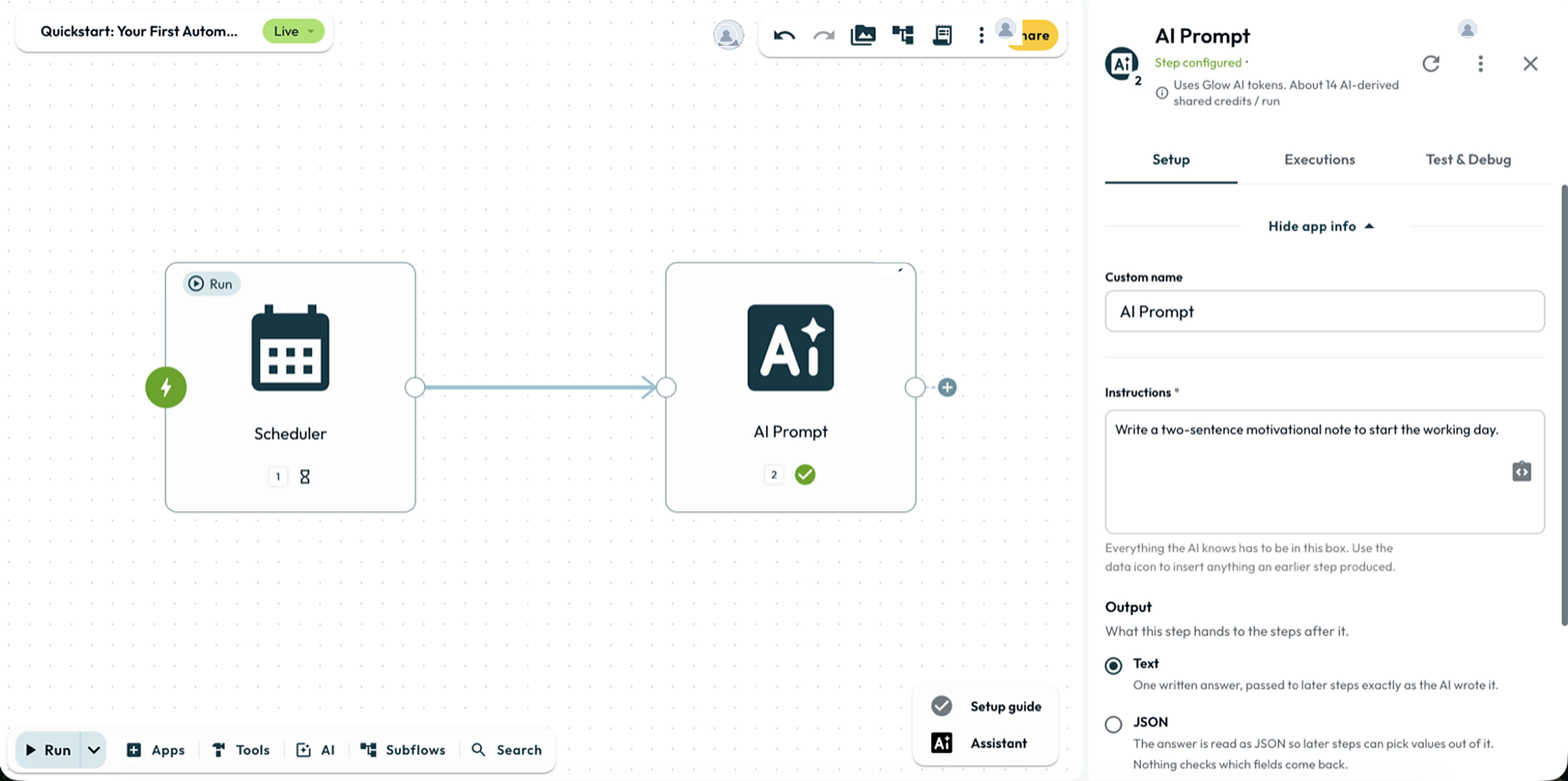
Glow provides managed access to Gemini. You do not need an API key or model selection: write the instructions and run the Step. Usage is billed through your Glow plan.
For multi-step tool use or memory, use AI Agent. To extract values per column without writing a full prompt, use AI Data Transform.
The model sees only what you write. Earlier Steps are never passed automatically. Reference every value the prompt needs.
Setting it up
Add it to the canvas
Press a+p, or drag AI Prompt from the AI section of the dock.
Write the instructions
Select the Step to open the App drawer and fill in Instructions.
Test the prompt
Click Run test (▶) on the Step card, choose Run step from ⋮, or click Run Test in Test & Debug. Steps set to Run for each item replay saved Testing data instead.
The fields
| Field | Description |
|---|---|
| Instructions | What the AI should do, including the data it should work with. Required. |
| Output | Choose Text, JSON, or Separate fields for the answer format. |
Referencing data
Reference earlier Steps by Step number inside Instructions:
Classify the following support ticket into one of these categories:
billing, technical, account, other.

Ticket subject: {{ 1.subject }}
Ticket body: {{ 1.content }}

Respond with only the category name.
To pass a step’s entire output, reference the step number alone:
Summarize this email: {{ 3 }}Insert references with the data picker. HTTP Request wraps its response under ret ({{ 3.ret.email }}), whereas native app actions do not ({{ 3.email }}). See Variable Reference Syntax.
What it passes on
result follows the selected Output format. Neither JSON nor Separate fields needs a downstream Parse JSON Step.
Text
Text returns a plain string under {{ N.result }}:
{ "result": "Why don't skeletons fight each other? They don't have the guts." }Switching to Text or JSON keeps your saved shape without enforcing it. Select Separate fields again to restore validation. If an answer does not match the declared shape, the Step fails.
Ask the AI to fix a wrong shape is off by default. Turn it on to allow one extra AI call when validation fails. Repair adds usage and time, and the Step still fails if the replacement is invalid.
Swapping AI Prompt for AI Agent keeps {{ N.result }} paths compatible. Both Steps return their answer under {{ N.result }} or {{ N.result.field }}.
Limits
Missing input
A bare reference to a missing field fails before calling the model. A transformation chain can supply a fallback instead, while a blank prompt fails immediately. Add a Condition Step first to check required inputs, and see Testing & Debugging.
High-volume runs
Each execution makes one model call, plus at most one call for shape repair. Check usage and System Limits before scaling high-volume runs.
Examples to copy
For the Webhook examples below, enable Body only on Step 1, or prefix fields with 1.body. Match saved Testing data to that shape.
Classify tickets
A webhook receives support tickets. The AI Prompt step classifies each one, and a Switch step routes it to the right queue.
You are a support ticket classifier. Read the ticket below and respond
with exactly one category: billing, technical, account, or other.

Subject: {{ 1.subject }}
Body: {{ 1.content }}- Run
- Write instructions referencing an upstream field, choose Text, JSON, or Separate fields, and click Run test on the Step card
- You should see
- The Step returns the model's answer under {{ N.result }} (or {{ N.result.field }} for JSON and Separate fields).
What’s Next?
- 👉 AI Agent →: hand multi-step tasks to an autonomous agent with tools and memory.
- Choosing an AI Step: compare AI Prompt against AI Agent and AI Data Transform.
- Variable Reference Syntax: look up data paths and variable reference syntax.