Automation Data
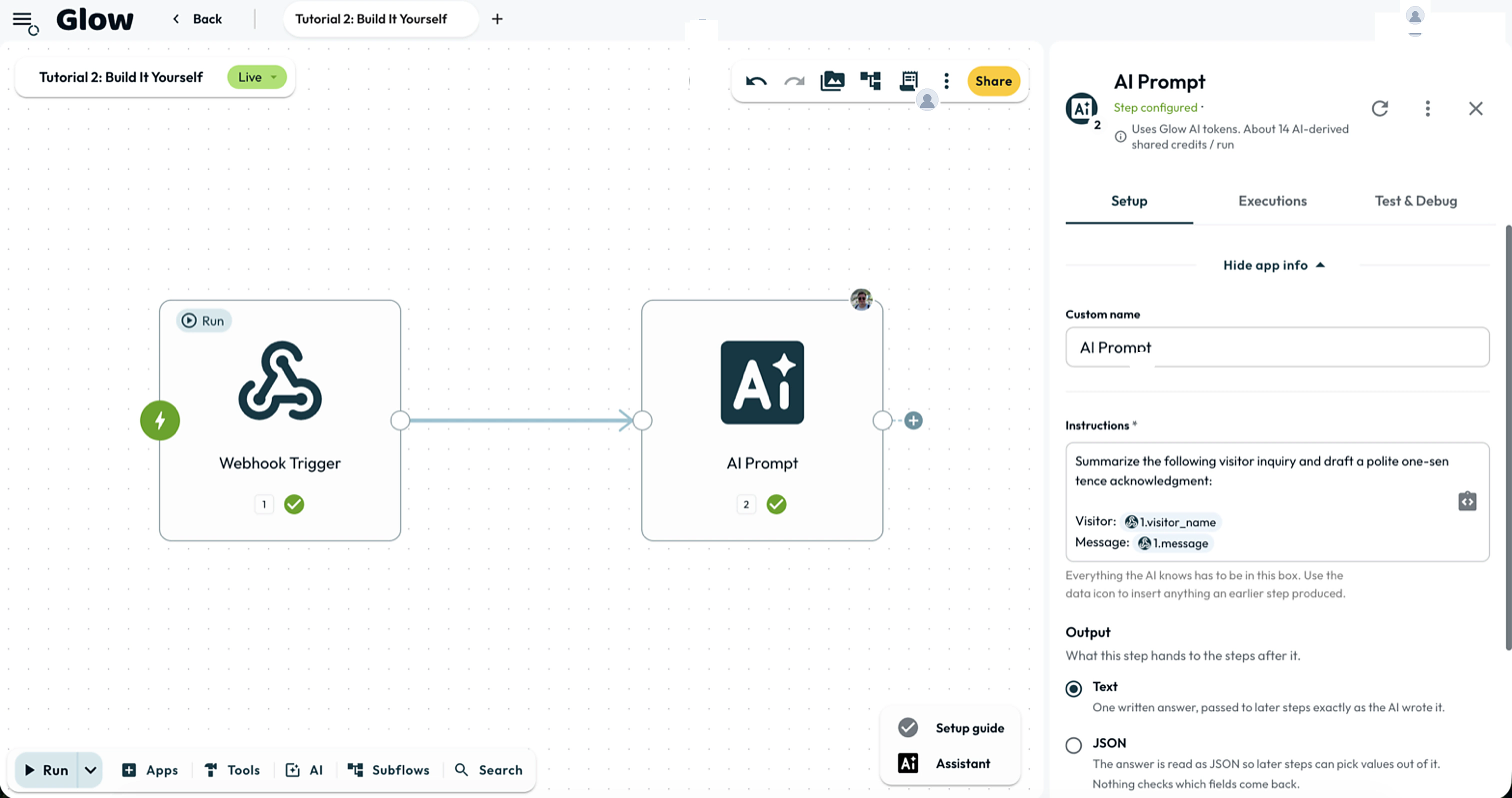
Pass outputs from earlier Steps into downstream fields using variable chips from the Workflow data panel. You reach any earlier result with a reference like {{ <step number>.<field> }} so the Step number and path stay accurate.
- Use it to
- Map outputs from earlier Steps, system tokens, and workspace variables into downstream Step fields
- Find it
- Any Step input field → data icon → Workflow data panel (Data select, Data flow, Data transformation)
- Output
- Numbered references such as {{ 4.result }}, {{ item.email }}, {{ $input.customerId }}, and {{ $var.KEY }}
- Instead
- Custom Variables (for run-scoped calculated values) or Variables in the left sidebar (for persistent workspace values)
How data flows between steps
Connections decide which Steps run next. Field references decide which data each Step reads; a connection alone does not copy the previous Step’s output into every input.
- Open Workflow data: Click the data icon at the right of any field. The Workflow data panel opens with three tabs: Data select, Data flow, and Data transformation. Data select lists Input data, System Variables, Team Variables and Secrets, and every earlier Step by name and number.
- Pick a field: Expand a Step or group in Data select and click the value you want. It appears in the field as a chip such as
4.resultor3.$full_result. Behind the chip is the reference{{ 4.result }}. - Run once to see real fields: Before the first run, a Step shows only the fields its schema promises to return. After a run, Data select lists the fields and values the Step actually returned.
| You want | Write | Example result |
|---|---|---|
| One field of an earlier Step | {{ 4.result }} | Today is a fresh opportunity... |
| A nested field | {{ 2.customer.address.city }} | Prague |
| The first item of a list | {{ 2.items.0.name }} | Pro plan |
| The whole output of a Step | {{ 3.$full_result }} | The whole object or list, as JSON |
| The current item in a loop | {{ item }}, {{ item.email }} | [email protected] |
| Input from a parent automation | {{ $input.customerId }} | cus_9821 |
| Today’s date (UTC) | {{ $today }} | 2026-10-29 |
| A workspace secret | {{ $secret.STRIPE_API_KEY }} | Masked as [REDACTED] in logs |
| A fallback when a field is empty | {{ 3.company | default:"Unknown" }} | Unknown |
Why numbers, not names
A Step receives its number when created and keeps it if you rename or move it on the canvas. Deleted Step numbers are never reused, so existing references never break or point at a different Step. Gaps in numbering (such as Steps 3 and 4 on a two-step automation) are normal. There is no name-based form: {{ trigger.email }} and {{ steps.trigger.data.email }} do not work.
The three tabs in Workflow data
| Tab | What it does |
|---|---|
| Data select | Lists Input data, System Variables, Team Variables and Secrets, and every earlier Step. |
| Data flow | Shows how data moves between Steps and when each connection last carried a payload. |
| Data transformation | Tidies a value in memory before this Step uses it; see Tidying a value. |
Pick a specific field when you can. Before a Step runs, Data select
offers $full_result ({{ N.$full_result }}), which passes the entire output
object. For AI Steps, run the upstream Step once first. Then pick only the
fields the prompt needs instead of sending the whole object.
Tidying a value before a step uses it
The Data transformation tab (or a | pipe chain written directly in a reference) lets you clean, format, filter, or total a value in memory without adding another Step:
{{ 3.email | trim | lower }}
{{ 2.items | where:"status":"paid" | pluck:amount | total }}
{{ $now | date_add:7:days | format_date:date_iso }}- Supported heads: Pipe chains work on Step references (
{{ N.field | ... }}), loop items ({{ item.field | ... }}), and subflow inputs ({{ $input.field | ... }}). They also work on UTC clock tokens ({{ $now | ... }},{{ $today | ... }},{{ $yesterday | ... }}). - Missing fields & untaken branches: An empty or missing field skips every operation except
default:<value>. Add| default:"Unknown"so a missing optional field or untaken branch does not stop the run.
See Variable Reference Syntax and Data Transformation for the full list of operations.
Run-scoped vs. workspace variables
- Custom Variables Step (
{{ 3.status }}): Computes named values for later Steps in the same run. Each run calculates its own values; nothing is carried over to the next run. - Workspace variables and secrets (
{{ $var.KEY }},{{ $secret.KEY }},{{ $key.KEY }}): Persistent workspace-wide values managed under Variables in the left sidebar.
Inspecting data
When a field receives an unexpected value, trace it backward in the same run:
- Find the run: Open the Execution Log or the Step’s Executions tab and expand the latest run (it opens expanded by default).
- Check the referenced source: Read the chip in the failing Step’s field (such as
{{ 3.ret.id }}), then open Step 3’s Executions tab for that same run to see what it returned. - Verify before retrying writes: Check the connected destination app before repeating any send, create, or update action. See Step-Level Executions.
- Run
- Click the data icon inside a Step input field, select an upstream field from Data select, and click Run step.
- You should see
- The field resolves the variable chip using the upstream Step's recorded output for that run.
What’s Next?
- 👉 Variable Reference Syntax →: complete reference for
$input, system variables, loop tokens, and all pipe transformations. - Mapping or Transforming Data: choose between direct mapping, an inline pipe, a list Step, AI, and Python code.
- Data Transformation: examples for cleaning text, calculating numbers, and formatting dates.