Data and Mapping Problems
Fix unresolved variable tokens, empty fields, type mismatches, and single-item loop errors across your Steps. To inspect and replace any broken reference:
- Use it to
- Fix literal {{ }} tokens, missing-field errors, whole-object type mismatches, AI output shape issues, and single-item loop bugs
- Find it
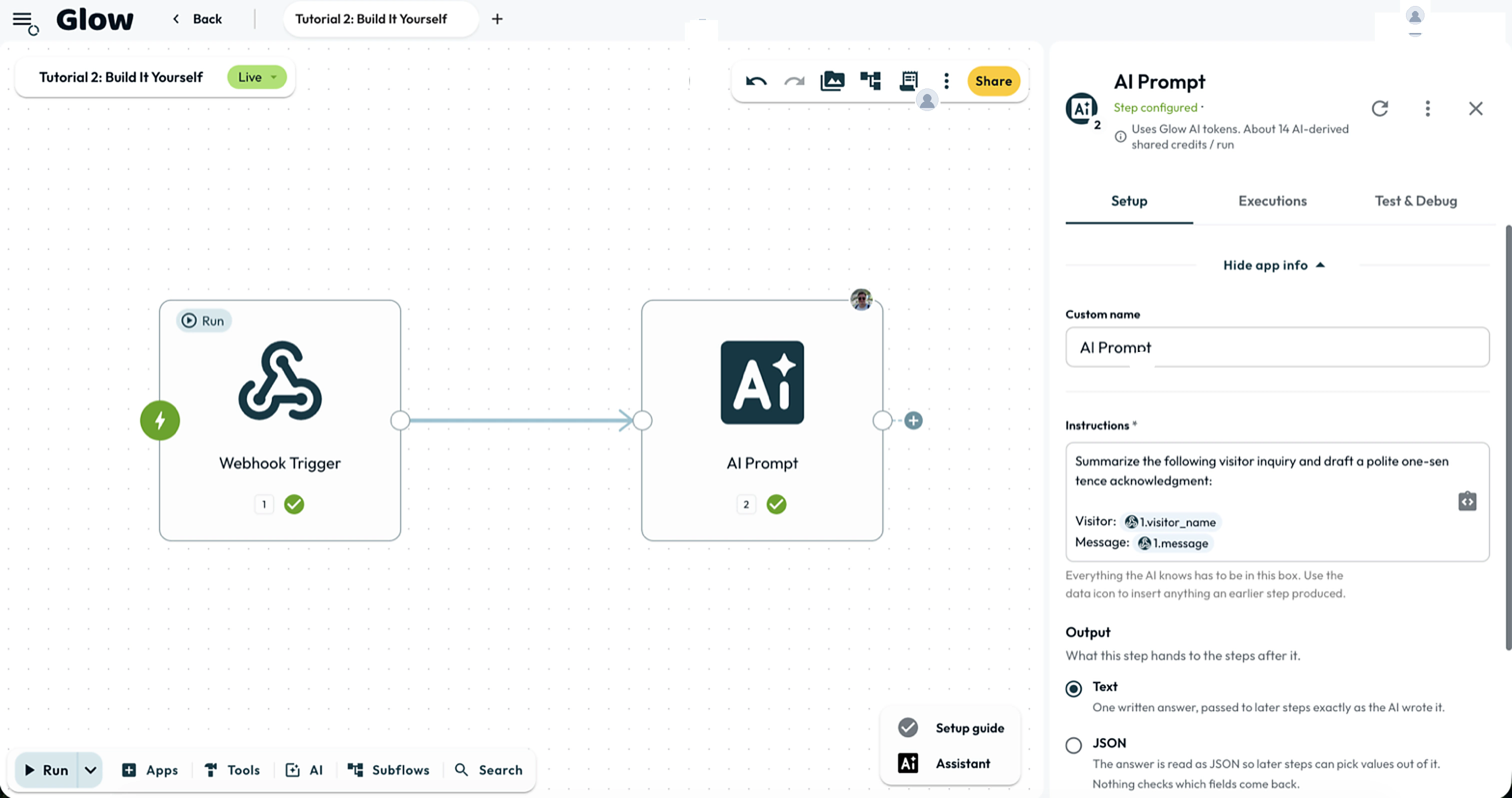
- Step App drawer → Setup tab → Workflow data panel (data icon)
- Instead
- Variable Reference Syntax (for the complete catalogue of {{ }} tokens and inline pipe transformations)
- Open the upstream Step’s Executions tab for the affected run and verify the exact field path and data type it produced.
- Delete the broken token in the destination Step’s Setup tab. Re-insert it from the Workflow data panel (the data icon in the field) rather than typing it by hand.
| Symptom | Typical wrong reference | Correct form | Quick fix |
|---|---|---|---|
Reference sent as literal text ({{ ... }}) | {{ $index }}, {{ item }} in Filter, or unexecuted branch {{ 3.email }} | {{ item.$index }}, {{ $item }} in Filter, or active branch Step | Match the loop/Filter variable syntax or verify the referenced branch ran |
"Placeholder 5.email didn't find data" | Deleted/wrong Step number 5 or wrong wrapper ({{ 2.ret.email }} on app Step) | Existing Step number and actual output path ({{ 2.email }}) | Pick from Workflow data or add | default:"..." for optional fields |
| Sent a whole record instead of one field | {{ 2.customer }} (Object) | {{ 2.customer.email }} (String) | Expand the record in Workflow data and select the leaf field |
| Value came through empty | Optional payload field omitted in that run | Guarded with a Conditions Step or | default | Check upstream Output Data and add a Condition before required fields |
| AI output has the wrong shape | {{ 4.result.field }} on prose or AI Data transform | {{ 4.result }} (prose) or {{ 4.result.0 }} (AI Data transform) | Configure JSON schema on AI Prompt/Agent, or index AI Data transform by number |
| Only the first item was processed | {{ 1.items }} mapped into a single-item field | {{ item.field }} with Once per item enabled | Click the Step’s repeat badge, choose Once per item, and map {{ item.… }} |
A step succeeded but sent the reference as literal text
Visible braces in the destination mean the token never resolved:
- Wrong loop token:
{{ $index }}(instead of{{ item.$index }}) or{{ item }}inside a Filter rule (which requires{{ $item }}) stays literal. - Skipped branch: A numbered Step reference (
{{ 3.email }}) to a Step on a branch that did not run in the current execution is left unresolved.
Check Referencing step output and re-insert the token from Workflow data.
“Placeholder 5.email didn’t find data”
The Step number does not exist on the canvas, or the referenced field was absent on a Step that did run. A Step’s number is permanent and never reused when Steps are deleted or reordered. For an optional field on a valid Step, a fallback transformation ({{ 3.company | default:"Unknown" }}) supplies a default value and logs a warning. A fallback cannot fix a nonexistent Step number. Check Referencing step output for each Step’s output shape (ret for HTTP Request, result for AI Steps, body for default Webhooks).
The step sent a whole record where one field was wanted
The Step failed with a type mismatch (such as Object instead of String) or wrote a JSON block into a text field. This happens when the parent record pill (customer) is selected instead of a single property (customer.email). Delete the pill, expand the object in the Workflow data panel, and select the leaf field.
The step ran but the value came through empty
The upstream Step ran, but its payload omitted that field in this execution (common with optional webhook fields). Check the upstream Step’s Executions output and add a Conditions Step to verify the field exists before routing to an action that requires it.
AI output has the wrong shape
Open the AI Step’s Executions tab and inspect result:
- AI Prompt and AI Agent: Use
{{ N.result.field }}only when structured JSON output is configured. Ifresultis plain text, enable structured output options and retest. - AI Data transform: Outputs an array of strings, one per instruction. Reference the first instruction with
{{ N.result.0 }}, not{{ N.result.field }}.
Only the first item was processed
Mapping an array into a field that expects a single value processes only one item or fails with an Array type error. Click the Step’s repeat badge on the canvas, select Once per item, choose the list, and map fields from the current item using {{ item.… }}. See Run for Each Item.
- Run
- Re-insert the field from the Workflow data panel and test the Step with saved data.
- You should see
- The Step resolves the expected value and data type without literal braces or missing-data errors.
What’s Next?
- Confirm the supported forms in Variable Syntax.
- Trace the value to its source with Debug a Run.
- Use controlled test data with Testing & Debugging.