Account & Authentication
Create your Glow account, sign in with email, OAuth, or SSO, and configure your profile and workspace access.
- Use it to
- Create a Glow account, sign in with email, Google, GitHub, or SSO, enable 2FA, and manage your profile
- Find it
- app.getglow.ai → Profile menu (top right) → Your account
- Limits
- Free allowance includes 1 owned workspace · One personal account can belong to multiple team workspaces
- Instead
- Setting Up Your Team (to invite colleagues and assign Admin, Manager, Member, or Viewer roles)
Go straight to: create an account · sign in · reset a password · set up your profile · understand teams and workspaces
Trying Glow before you sign up
Describe an automation on getglow.ai to watch the Workflow Assistant assemble it on a read-only canvas without an account. Sign up in the same session to move that draft into your new workspace.
Sign up in the same session to keep the draft. Unclaimed drafts expire after their retention period and must be rebuilt.
Creating your account
Create your account
Open app.getglow.ai and click Create account.
Enter credentials
Sign up with email and password, Google, or GitHub. Creating an account accepts the Terms of Service, Privacy Policy, and Data Processing Policy linked below the button.
Verify your email
Enter the one-time verification code sent to your inbox.
Name your workspace
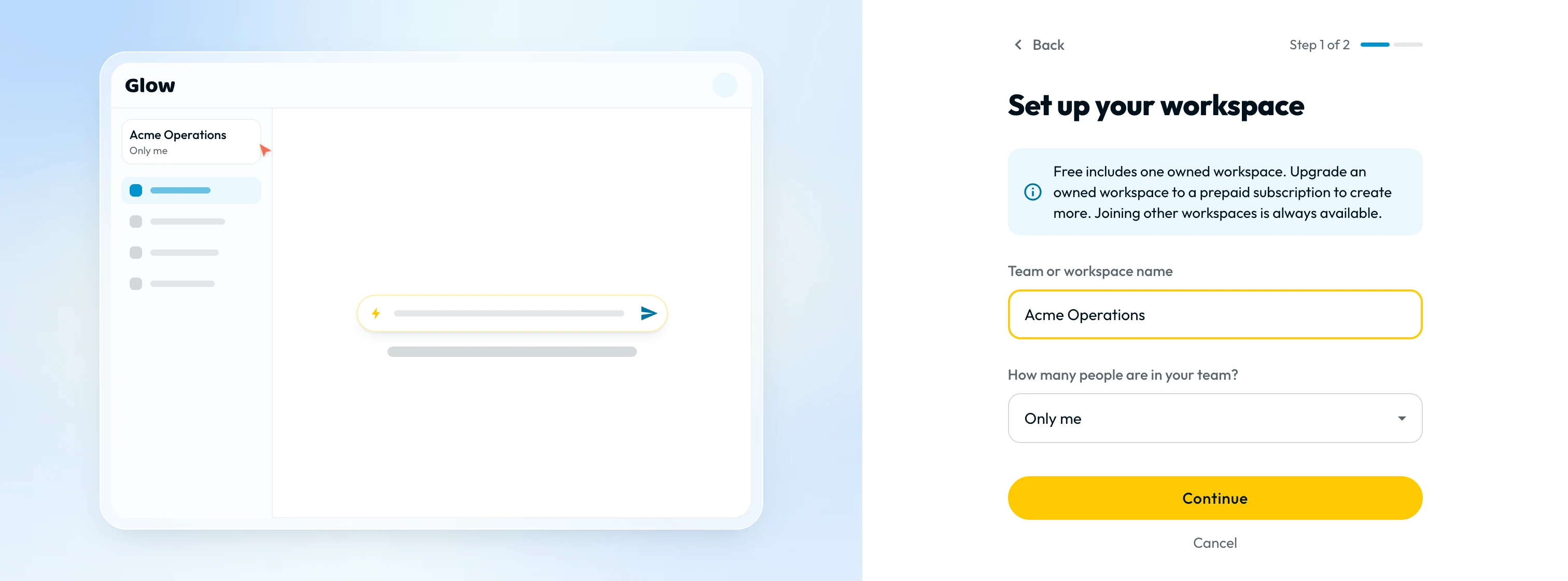
Enter a Team or workspace name, select your team size, and click Continue. The Free allowance includes one owned workspace; additional owned workspaces require an eligible subscription.
Say how you work
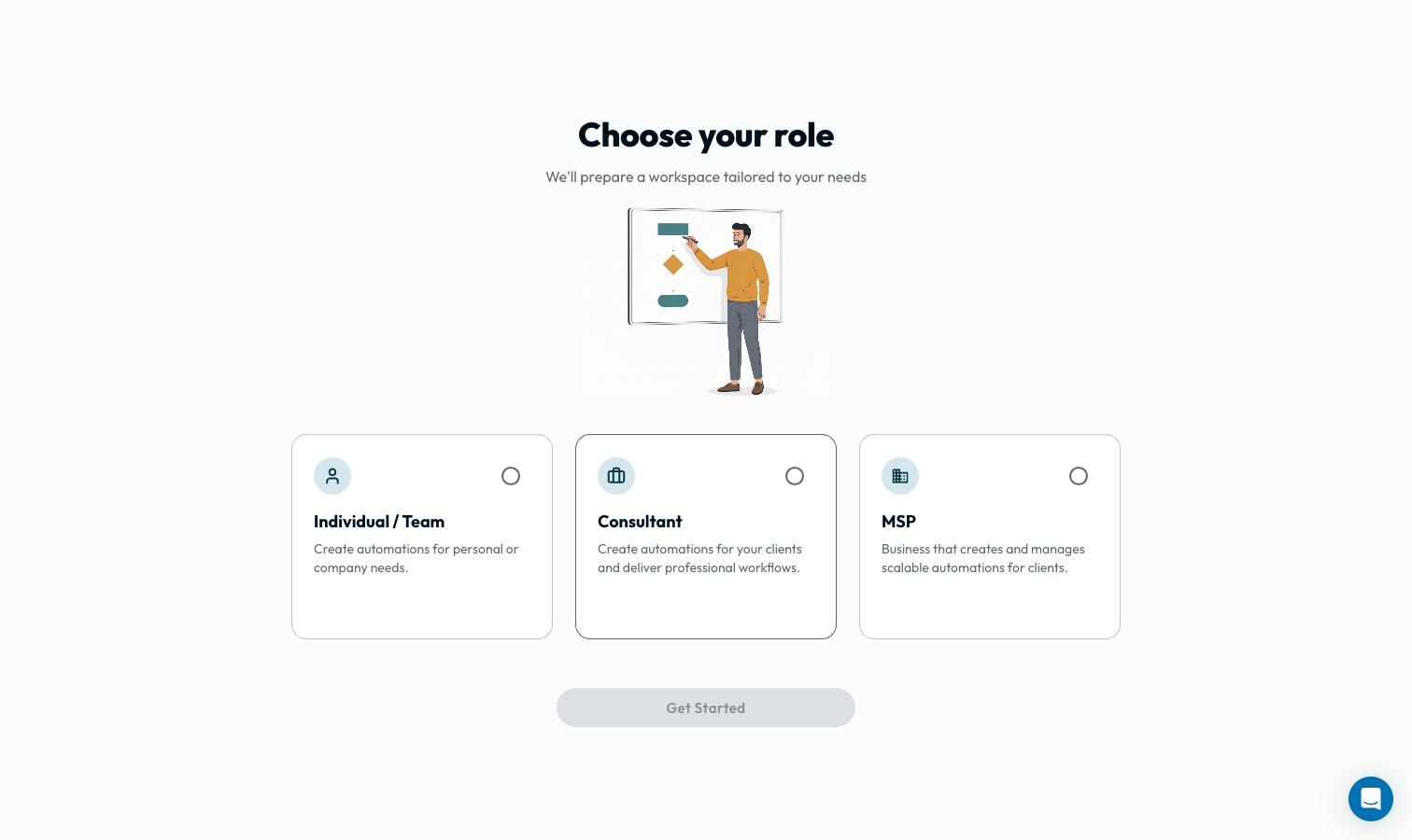
Under How will you use Glow?, select all options that apply:
- Using automations created by others: Install and run Marketplace templates.
- Building automations internally: Design and run automations for your team.
- Managing clients and building for them: Operate client automations. Choose I’m a consultant or We’re an MSP business (see Working With Clients).
Click Get started (or Create team when adding another workspace).
If your session expires during setup, sign in again or reopen your invite link.
Signing in
Sign in at app.getglow.ai/login after the automatic security check completes.
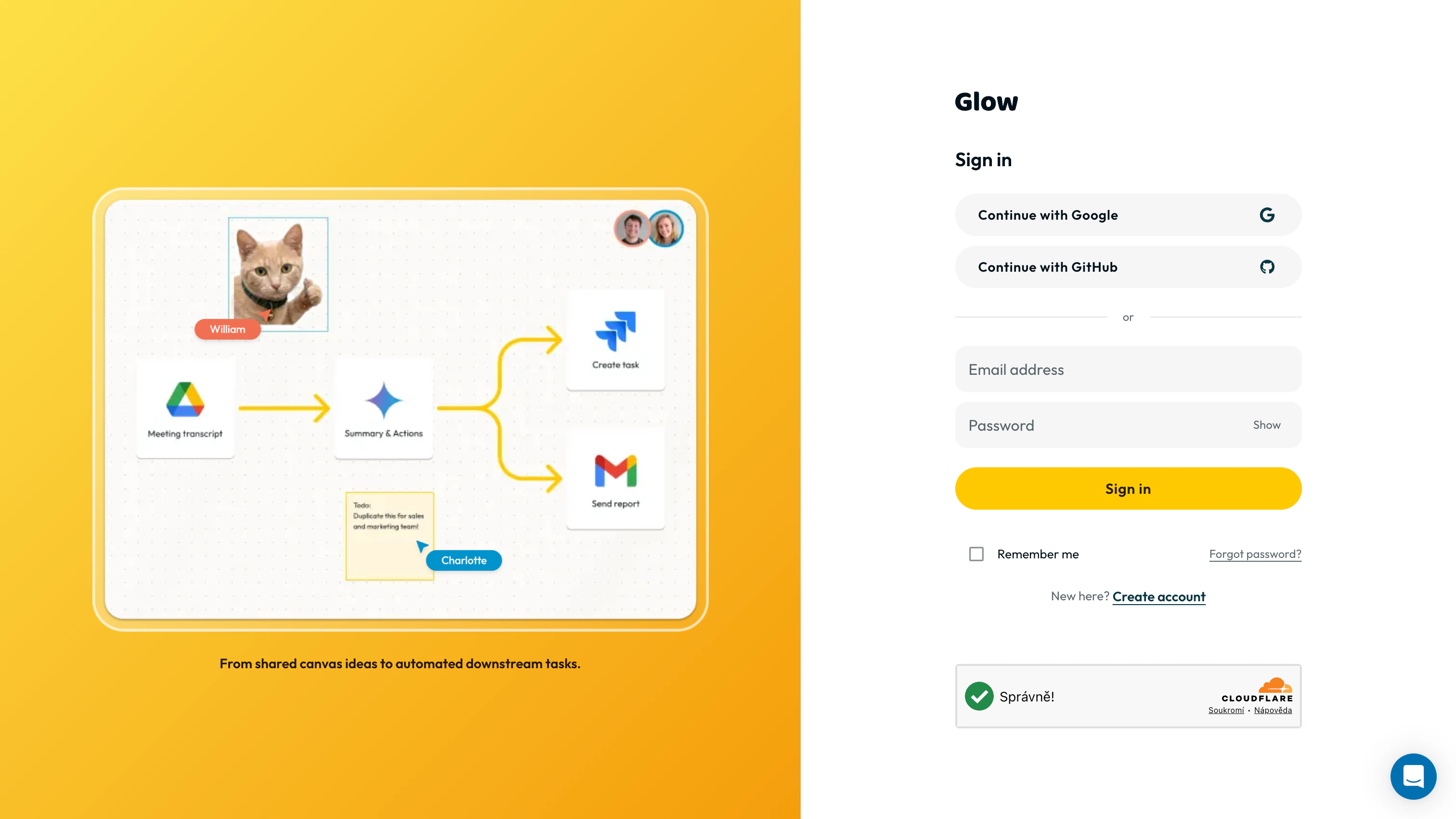
- Sign in with Google, GitHub, or email and password.
- Password accounts with 2FA require a 6-digit authenticator code on submit.
- Enable 2FA under Your account → Security.
- Password resets do not bypass 2FA; contact support if you lose your authenticator.
- Configured with your account team for your identity provider.
- Sign in using the instructions shared by your administrator.
- External SSO session lifetimes are governed by your identity provider.
Signing in through your company
Follow your administrator’s SSO instructions or see Signing In and SSO.
Two-Factor Authentication (2FA)
Configure 2FA under Your account → Security; see Personal Settings.
Password reset
Request reset
Click Forgot password? on the login screen (or open /password).
Submit email
Enter your account email and click Send reset link. Use Resend link after the timer or Use another email to change the address.
Create new password
Open the emailed link, enter your new password twice on Choose a new password, and click Set password. If the link expired, click Send a new link.
Manage Google, GitHub, or SSO credentials with that provider. Eligible accounts can add a Glow password under Your account → Security; see Personal Settings.
Signing out
Open your top-right profile menu (or tap your avatar on mobile) and select Sign out. To revoke other devices, open Your account → Security → Where you are signed in and click Sign out everywhere.
Setting up your profile
Open your profile menu in the top right and select Your account:
- Full name: Appears on runs, approvals, and authorship. Press Enter or leave the field to save.
- Change photo: Uploads your avatar for teammates.
- Email: Shows your sign-in address (Change requires confirmation from both inboxes).
- Membership: Displays your workspace role, join date, and user ID.
Manage passwords and 2FA in Security, theme and timezone in Preferences, and personal editor tokens in MCP. See Personal Settings.
Your account, your team, your workspace
One personal account can belong to multiple isolated team workspaces.
- Account: Your personal email, sign-in, and profile across every team you join.
- Team: Shared owner of automations, connections, and secrets so teammates can collaborate.
- Workspace: Active team view. Switch workspaces from the team name at the top of the sidebar, and use a separate workspace per client.
What you can do in a team depends on your role
You are the Admin of any team you create. Invited members receive one of four roles (tutorials require Admin, Manager, or Member; see Setting Up Your Team):
- Admin: Create, edit, and run accessible automations; invite any role; manage team settings, roles, and billing.
- Manager: Create, edit, and run accessible automations; invite and manage Members and Viewers; manage team variables.
- Member: Create, edit, and run accessible automations; cannot invite users or administer the team.
- Viewer: View shared diagrams, run summaries, and comments on a read-only canvas (no edit, run, or payload/config access).
How long you stay signed in
Remember me saves your email address in the browser, not your password. Glow refreshes active sessions until you sign out.
- Run
- Sign in at app.getglow.ai and open your profile menu in the top right → Your account
- You should see
- The Profile tab displays your full name, verified sign-in email, and current workspace role.
What’s Next?
- Set up your team to invite colleagues and choose their roles.
- Build your first automation if you are working alone.