Debug a Run
Debug one run by finding the first result that differs from what you expected. The final red Step may only be where an earlier data or connection problem became visible.
- Use it to
- Trace a failed or unexpected run backward from the Execution Log to the first Step where data or routing diverged
- Find it
- Canvas → Execution Log → Step App drawer → Executions tab
- Instead
- Automation Did Not Start or Is Still Waiting (when no run appears in the Execution Log)
Follow the run from the first wrong result
Open the run
Find the event or time in the Execution Log. If no run exists, troubleshoot the trigger instead with Automation Did Not Start or Is Still Waiting.
Find the first unexpected Step
Follow the route through the canvas. Stop at the first Step that failed, was skipped unexpectedly, or produced the wrong value.
Read its Executions entry
Open the Step’s App drawer, go to Executions, and read the full message, input, and output for that run. Look for the exact validation message in Step Error Messages.
Trace the input upstream
If the input is wrong, open the upstream Step’s Executions entry. Continue backward until you find where the value or shape first changed.
Reproduce the smallest safe part
Choose between saved-data replay, a real isolated action test, and an automation run using Testing & Debugging. Replay does not verify the connected service. An automation run can reach downstream writes, so check the destination and intended path before repeating a create, update, send, or charge action.
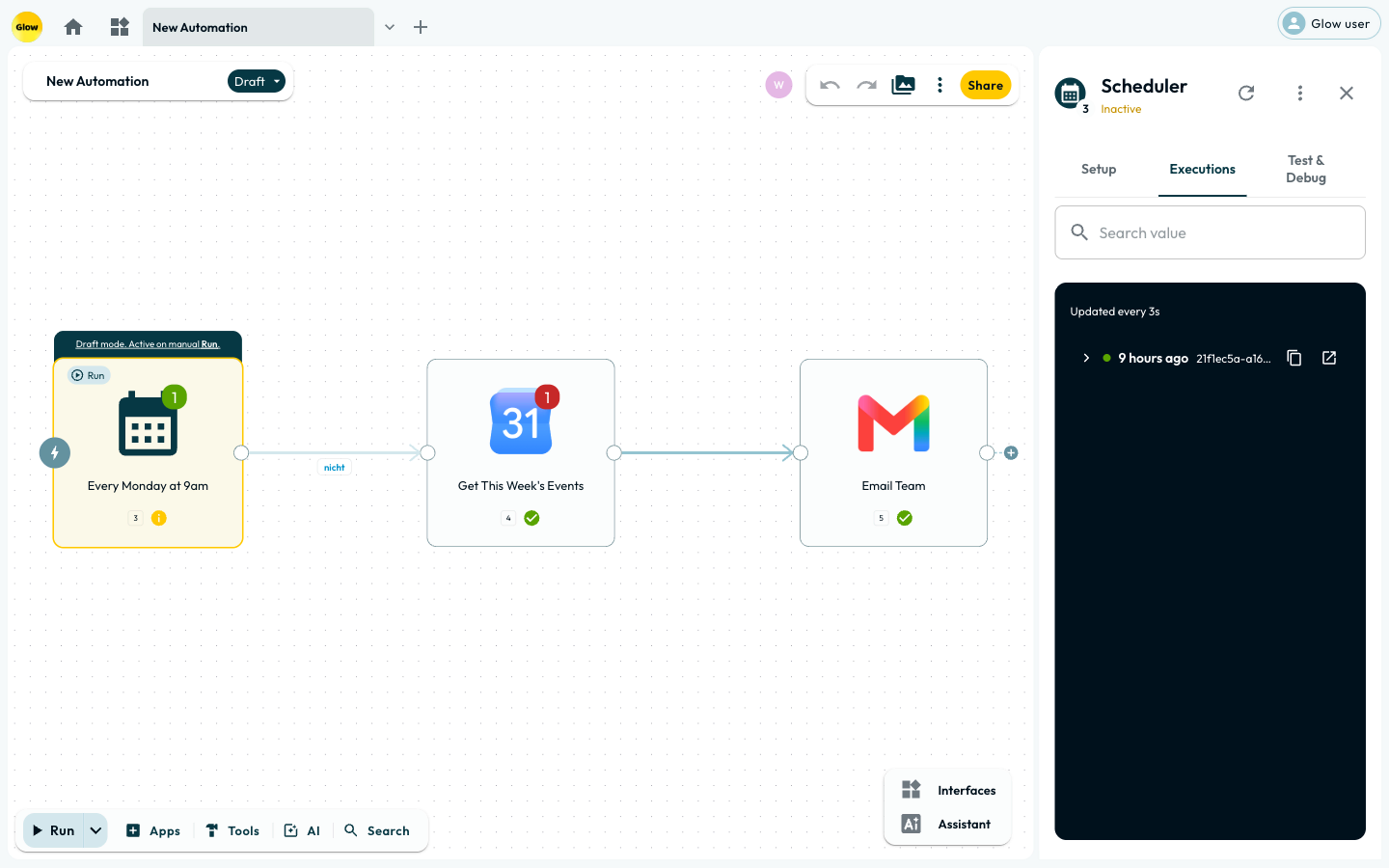
The automation ran twice
First decide whether you are looking at two separate runs, automatic retries, or loop passes:
| What you see in Executions | What it means | How to verify or prevent |
|---|---|---|
| Two execution IDs | Two separate runs started (for example, duplicate webhook deliveries or overlapping schedules). | Compare trigger payloads and timestamps; deduplicate using the sender’s stable event ID. |
One execution ID with Attempt 2 or Attempt 2 of 4 | Retry on fail repeated a single failing Step within one run. | Inspect the first attempt’s error and use an idempotency key or record update on writes. |
| One execution ID with multiple unmarked entries | Separate items or passes on a looping Step, not retries. | Check the input list length and per-item inputs in the Step’s Executions tab. |
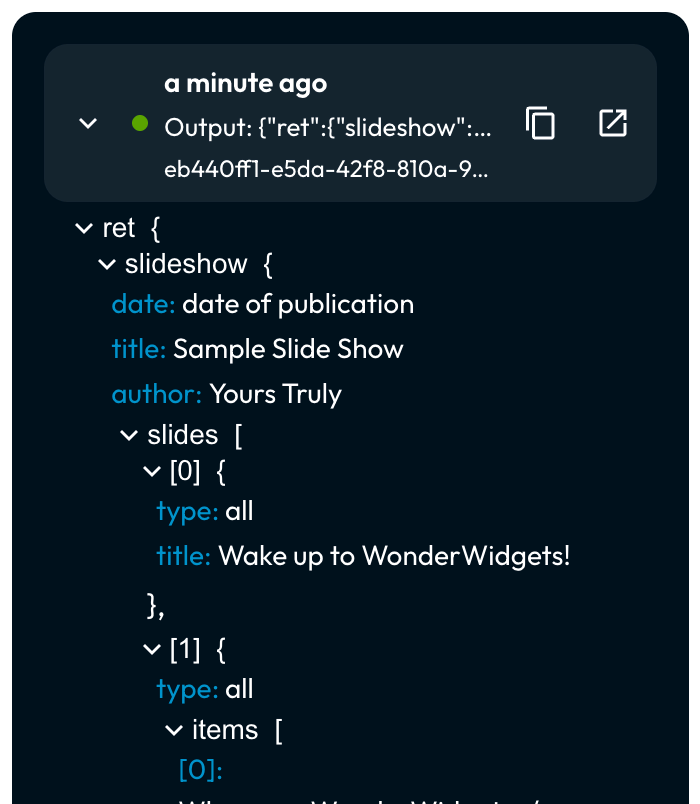
An AI Agent looked up values but did not run the action
An AI Agent activity entry labelled Look up values: … lists available values for an app action’s fields. It is not the action itself. Check the subsequent action’s result before concluding that the agent sent a message, created a record, or made another change. If the outcome is uncertain, inspect the connected app before retrying.
Route the finding
- A missing or still-waiting run belongs in Automation Did Not Start or Is Still Waiting.
- A wrong value, missing field, or list/item mismatch belongs in Data and Mapping Problems.
- A provider error, timeout, or uncertain write belongs in Connections and External APIs.
- A named Step validation message belongs in Step Error Messages.
When the documentation does not have the answer
Ask in the Glow Forum with the Step type, error code, and a sanitized example of what you expected and what happened. Before posting text or screenshots, remove credentials, personal or customer data, private URLs, and sensitive configuration. Share evidence that cannot be sanitized through your account team’s support channel, not a public post.
- Run
- Open the first unexpected Step's Executions tab and match the run's timestamp and execution ID.
- You should see
- The panel shows the exact input, output, or error where the run first diverged.
What’s Next?
- Learn the run-level view in the Execution Log.
- Inspect individual Step attempts in Step-Level Executions.
- Build a recovery path with Error Handling & Retries.