Chat Trigger
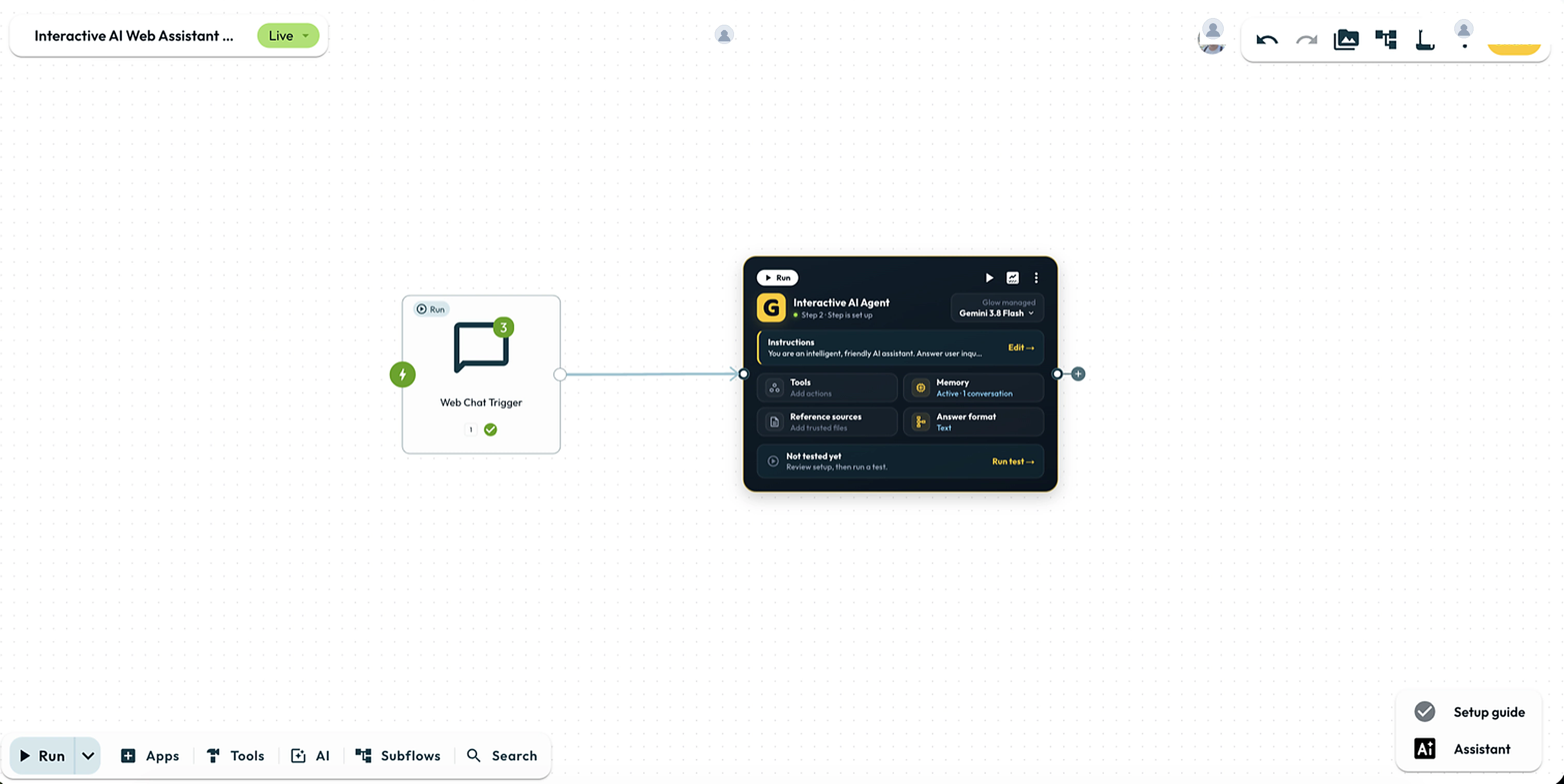
The Chat Trigger gives your automation a hosted chat page or embedded endpoint people can talk to. Each accepted message starts a run, and the final Step’s output supplies the reply.
- Use it to
- Start a conversational automation from a hosted chat page or embedded chat widget
- Find it
- Tools → Start → Chat
- Cost
- Free (0 Step credits for the trigger; AI Agent or AI Prompt Steps use Glow AI tokens)
- Limits
- Hosted chat link active when the automation is Live
- Output
- {{ 1.message }}, {{ 1.sessionId }}
- Instead
- Form Trigger (for structured one-shot submissions) or Webhook Trigger (for API events)
"Can you check the status of order #4821?"A visitor or teammate sends a message in the hosted chat interface (or in the trigger's built-in Chat test tab).
- Glow hosts the chat interface at a shareable URL once the automation is Live.
- Customise the page title, welcome message, and input placeholder.
- Protect with Basic Auth or Glow User Auth, or leave open with per-visitor rate limits.
- Exposes a POST endpoint your own product or website widget calls.
- Accepts JSON with chatInput, an unguessable sessionId, and optional metadata.
- Returns the final Step's output when the automation finishes.
Setting it up
Add the trigger
Open Tools in the dock and choose Chat Trigger under Start.
Pick a mode
With Hosted Chat, Glow hosts the page and you share its link. Choose Embedded Chat when you already have a chat interface and only want the automation behind it.
Decide who may talk to it
Authentication defaults to None, which means anyone holding the link can chat. Choose Basic Auth to require a username and password you configure on the step, or Glow User Auth to require an Admin, Manager or Member role in the workspace that owns the automation (Viewer membership is not enough).
Build the reply
Add the steps that decide what to say. An AI Prompt reading {{ N.chatInput }} is the usual starting point, where N is the Chat Trigger’s step number.
Try it before anyone else does
The Step’s Chat tab runs messages through your automation in Draft or Live. These are real runs: downstream actions can write to apps and consume credits. Use test accounts and safe destinations. If the reply is delayed, inspect the existing execution before sending the same request again.
Go live
The chat URL appears once the automation is Live. In Draft the panel shows a Go live button instead of a link.
What it passes on
| Reference | What it holds |
|---|---|
{{ N.chatInput }} | The message the visitor just sent (required on every turn). |
{{ N.sessionId }} | Identifies one visitor’s conversation across messages (generated automatically in Hosted Chat; optional in Embedded Chat). |
{{ N.metadata }} | Optional JSON metadata your widget sent alongside the message. |
{{ N.historyText }} | The recent conversation formatted as text, ready to drop into an AI Step’s prompt. |
The last Step’s output is sent back as the reply, so the caller waits for the run to finish. Dropping {{ N.historyText }} into an AI Step’s instructions lets the model see what was already said in the same session.
Giving it a memory
Conversation memory (messages) sets how many earlier messages of the same sessionId are handed to the automation as history. Set it to 0 to omit earlier chat messages from the trigger’s history. An AI Agent’s separately configured memory can still supply context.
Longer history adds context and increases prompt size. Choose a window that covers the follow-up questions your automation needs to handle.
Keeping the cost predictable
Every message runs the automation and spends your team’s credits, so an open link is a running cost as well as an open door.
Messages per visitor per minute caps how fast one person can send. A per-visitor rate limit is always applied when Authentication is None, and this setting is how you tighten it. For an internal tool, Glow User Auth is the stronger control: only your team can start a run at all.
Making the page your own
Four settings shape the hosted page:
| Setting | What it does |
|---|---|
| Chat title | The heading at the top of the page |
| Welcome message | Shown before the visitor types. Display-only: it never reaches the automation |
| Input placeholder | The grey text in the message box |
| Response mode | When Last Step Finishes holds the request open until the automation completes, then returns the final step’s output |
Running automations from Slack, Teams, WhatsApp, Telegram, Discord, or Google Chat: Workspace messaging integrations live under Interfaces rather than the canvas Chat Trigger. Connect the platform in Interfaces, enable the automation in its Interfaces access matrix, and mention the Glow bot in a thread to supply inputs and run it.
Examples to copy
A support bot over your own documentation
Chat Trigger → AI Prompt. In the instructions:
Answer using only the product documentation supplied below.
If the answer is not present, say what information is missing.

Product documentation: [insert approved documentation text here]

Conversation so far:
{{ 1.historyText }}

Question: {{ 1.chatInput }}
Set Conversation memory to 10 so follow-up questions like “and what about the Pro plan?” still make sense.
An internal assistant, restricted to your team
Set Authentication to Glow User Auth and share the link internally. Only authorized workspace members can use it. Authentication does not remove rate limits or usage costs; choose limits appropriate to the workload.
A chat window inside your own product
Set Mode to Embedded Chat and POST each message as JSON from your widget:
{
  "chatInput": "Where is my latest invoice?",
  "sessionId": "sess_9f8a7b6c5d4e",
  "metadata": { "customerId": "cus_42", "page": "/billing" }
}
chatInput is the only required field. Send the same unguessable sessionId for each message from the same visitor so their conversation history continues (omit it to start fresh, and never reuse an ID across different visitors). Read custom metadata fields in the automation as {{ 1.metadata }}.
- Run
- Open the Step's Chat tab and send a test message such as 'Hello'.
- You should see
- The run completes, returns the final Step's reply in the chat thread, and records {{ 1.chatInput }} and {{ 1.sessionId }} in the Execution log.
What’s Next?
- AI Prompt: the step that usually writes the reply.
- Webhook Triggers: for starting an automation from a system rather than a person.
- Variable Syntax: the full reference for
{{ }}.